
Made for Mac users with “too many photos”.
MediaOrganizer is for people who have years of photos and videos scattered across folders, external drives, iPhones and cameras — and just want a clear, private, well-structured library again. No subscriptions, no cloud sync, no professional jargon required.
Made for real-life photo libraries
Real archives are messy: mixed devices, half-finished backups, old imports and folders you no longer remember creating. MediaOrganizer focuses on a few simple guarantees that make a long-term difference.
- No cloud required. Everything happens locally on your Mac.
- No subscriptions. A straightforward, one-time purchase on the Mac App Store.
- Works with what you already have. Existing folders and Photos Libraries, no migration required.
- Automatic structure. Uses dates, metadata and locations to build a clean, readable layout.
Does this sound familiar?
- Multiple external drives with old backups you no longer trust.
- Folders called
Photos_OLD,iPhone_backup_2andNew Folder (3). - Random filenames like
IMG_9382.JPG,DSC_1029.NEF,VID_20230101.MP4. - Photos from WhatsApp or old devices with wrong or missing dates and locations.
- A feeling that “everything is somewhere, but nothing is easy to find”.
If you recognize yourself in this list, MediaOrganizer was designed for you.
What MediaOrganizer does for you
Creates a clear folder structure
Turn years of scattered folders into a simple, readable layout based on dates
and places. For example: 2024 / 11 / Switzerland / Geneva.
Easy to browse from Finder, backups or any other app.
Fixes dates and locations where possible
Uses the metadata already inside your files to reconstruct when and where your photos were taken. When GPS is available, MediaOrganizer can recover meaningful city / country names for you.
Keeps everything private and local
MediaOrganizer works entirely on your Mac. No accounts, no uploads, no hidden servers. You always choose a Destination folder, and your original files stay exactly where they are.
Before and after
From a loose pile of files to a clean, readable library — in a single run.
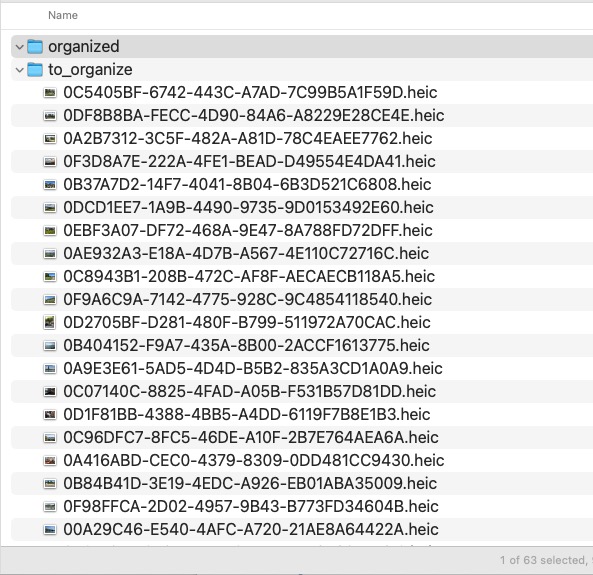
to_organize folder is full of loose files with random names.
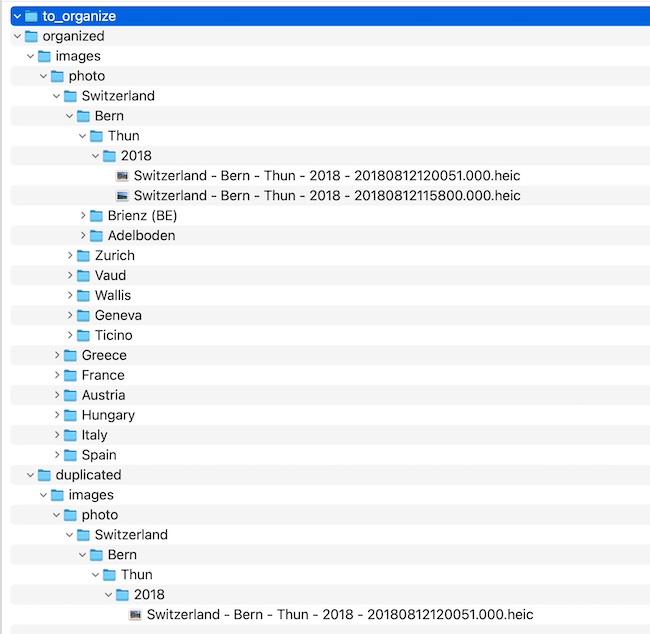
organized tree for your library and a separate
a duplicate review area folder for safe handling of duplicates.
How it works
-
Choose where your photos are.
Select a folder or an Apple Photos Library as the Source. MediaOrganizer reads the media and their metadata without changing anything.
Pick your Source: the place where your photos are today. -
Use Deep Search for complex archives (optional).
When enabled, Deep Search performs a deeper scan of the selected Source. This helps reveal photos stored in nested folders, old backups or irregular directory structures.
Deep Search helps discover media in complex or nested folder structures. -
Choose where the organized copies should go.
Pick a Destination folder. This is where the organized structure will be created. Your original folders are never modified.
Choose a Destination: a clean place for the organized library. -
Preview what will happen.
Before running a full batch, test with a single file. You can see example folder names, file names and locations, and adjust settings if needed.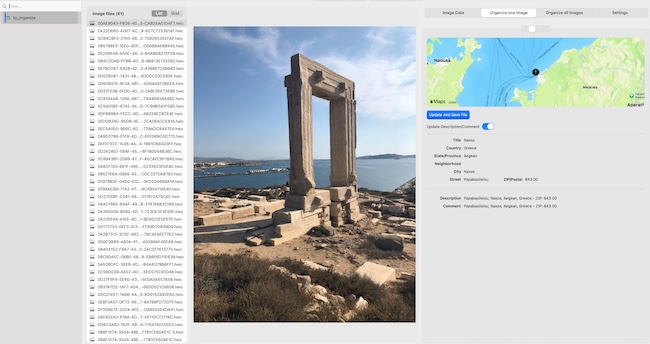
Use “Organize one Image” to preview names and locations before batch processing. -
Run the organizer.
When you are comfortable with the preview, run the full batch. Progress is shown in real time and you can stop at any time.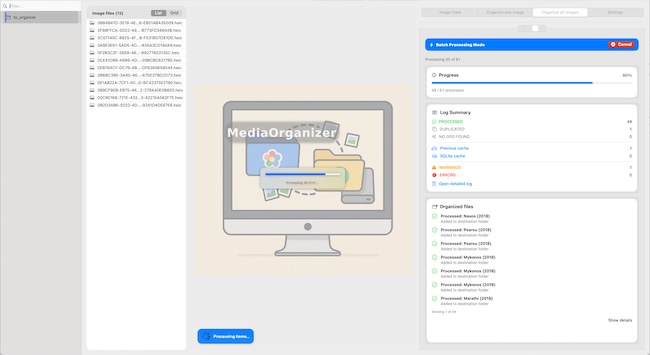
Run the batch organizer with live progress and a clear summary of what happened.
If your library is already large, don’t wait until it becomes unsearchable.

Safe by design
- MediaOrganizer never uploads your photos or videos anywhere. All processing happens locally on your Mac.
- There are no user accounts, no tracking SDKs and no analytics scripts.
- Your original files are never modified in place: the app always writes to a Destination folder you choose.
- You can start with a small test folder to see exactly how the app behaves before running it on a large library.
Simple answers for common questions
- Will it change my original photos?
-
It depends on the mode you choose. In Copy mode, MediaOrganizer
generates a clean organized copy in the Destination you select, keeping the Source
untouched. In Move mode, it will relocate and rename files from the
Source into the Destination.
Either way, the app does not rewrite or edit your media in place: it reads metadata and writes a new organized file path. - Do I need to understand EXIF or metadata?
- No. You can just pick a Source and a Destination and use the default settings. MediaOrganizer uses metadata internally to build a clean structure and better names, but you do not need to know the technical details.
- Does it work with Apple Photos?
- Yes. You can point MediaOrganizer to an Apple Photos Library and generate an organized copy of your collection as a normal folder tree on disk.
Need something more advanced?
If you work with larger archives, RAW files or professional tools, MediaOrganizer can also sit in front of Photo Mechanic, Lightroom, Capture One, Final Cut and DaVinci Resolve as a quiet normalization layer.
Explore MediaOrganizer for professional workflows →
If this is you, MediaOrganizer is for you.
You do not have to become a professional photographer or learn complex tools just to make sense of your own photos. MediaOrganizer gives you a clean, private structure that you can keep, back up and use for years.