

Clean input makes every pro tool better.
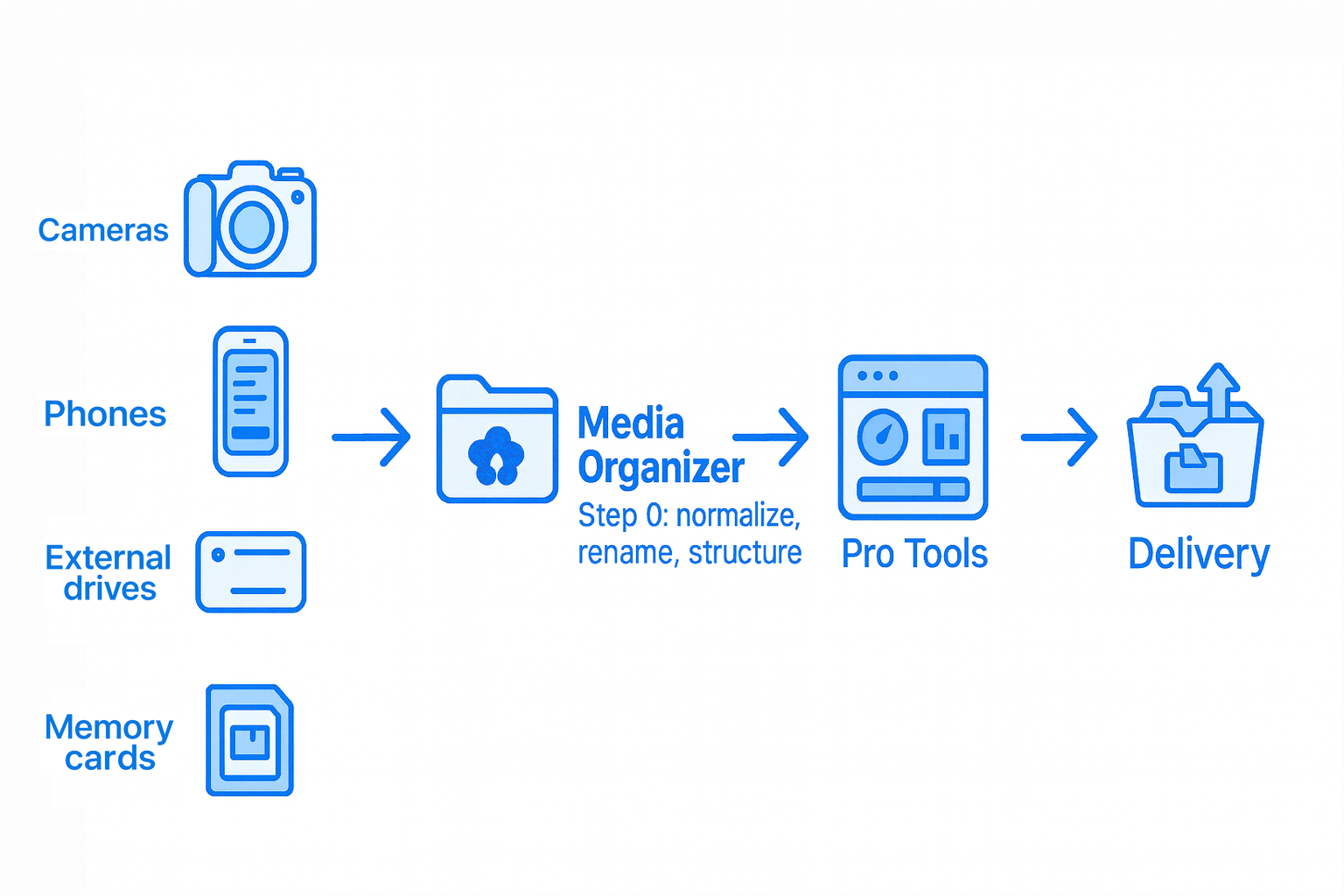
MediaOrganizer is designed to run before your professional tools. It prepares cards, dumps and legacy archives so that Photo Mechanic, Lightroom, Capture One, Final Cut, DaVinci Resolve and other apps receive clean, predictable media.
Instead of ingesting chaotic folders with mixed devices, wrong timestamps and inconsistent filenames, you start from a normalized structure with trustworthy metadata. Less time fixing, more time editing.
Who uses MediaOrganizer?
MediaOrganizer is designed as a quiet first step in professional pipelines — before cataloging, editing or delivery — for teams and freelancers who depend on predictable media.
- Event and wedding photographers merging cards from multiple cameras and shooters.
- Studios and agencies consolidating archives from old drives and shared folders.
- Photojournalists and documentary teams keeping original metadata and structure intact.
- Video editors and post-production teams preparing media before NLEs and asset managers.
Why file-level normalization matters
- Ingest speed: consistent folders and filenames reduce scanning overhead and make it easier to split jobs by day, shoot or location.
- Catalog health: normalized timestamps and GPS data produce better filters, smart collections and searches inside Lightroom and Capture One.
- Fewer collisions: deterministic filenames greatly reduce duplicate imports and accidental overwrites.
- Reliable archives: long-term backups benefit from a clear structure that does not depend on any single catalog or database.
With MediaOrganizer as the normalization layer
- Fewer duplicate imports and filename collisions.
- Cleaner catalogs, timelines and smart collections.
- Predictable handoff between tools and team members.
- Archives that remain readable without proprietary catalogs.
What MediaOrganizer does before your pro tools
MediaOrganizer applies file-level media normalization before ingest. It discovers media across complex folder structures, normalizes timestamps and metadata, and generates a deterministic archive that professional tools can ingest reliably.
Deep discovery before ingest
Deep Search expands the initial scan of the Source to uncover media stored in nested or irregular folder structures. This ensures the full dataset is discovered before normalization and ingest into catalogs, DAMs or editing pipelines.
Normalizes timestamps
Reads EXIF and other metadata to fix inconsistent capture times, apply consistent ordering across multiple cameras, and ensure that sequences sort correctly in your ingest and editing tools.
Cleans GPS and location metadata
Uses existing GPS coordinates (and optional reverse geocoding) to write consistent location fields. Your pro tools can then build collections and filters by location with confidence.
Deterministic folders and filenames
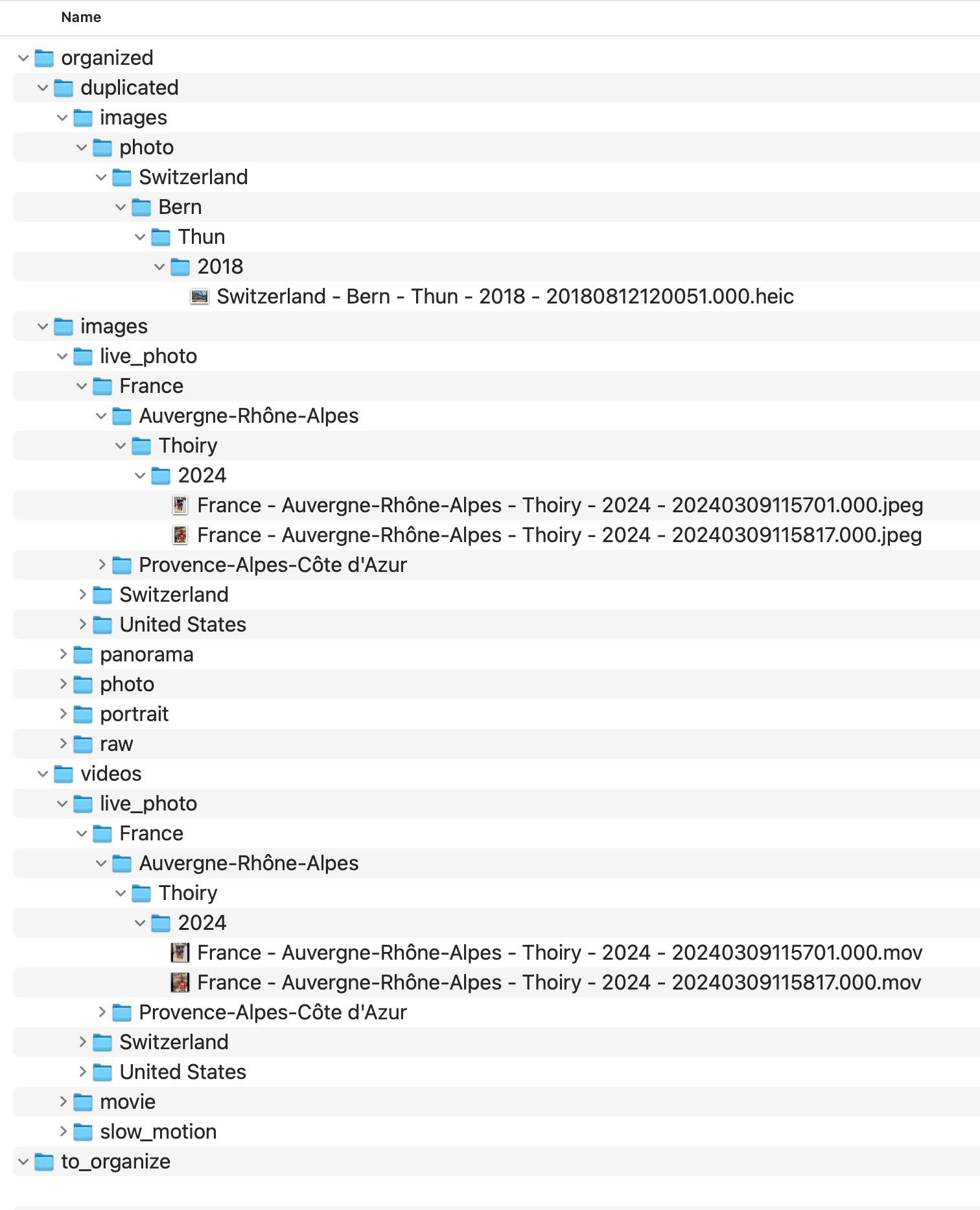
Creates a repeatable folder layout (by year, date, project or event) and stable filenames based on timestamps and metadata. This dramatically reduces collisions when importing into catalogs or NLEs.
Safe duplicate handling
Detects duplicates and sends them to a dedicated a duplicate review area for review, instead of silently discarding files. You stay in full control of what is kept, merged or removed.
Companion files respected
Works carefully with companion formats (RAW+JPEG, sidecar files, LUTs or proxies), ensuring that related files stay together as you move and rename your media.
Local, deterministic and auditable
All processing happens on your Mac, with detailed logs for every operation. Perfect for studios and freelancers who need predictable, auditable behavior in client projects.
If your ingest already feels fragile, MediaOrganizer removes the guesswork before you start.
Try MediaOrganizer on a real job →
Example workflows
MediaOrganizer does not replace your cataloging or editing tools. It prepares your media so that everything that follows becomes simpler and more predictable.
- Archive consolidation. Merge legacy drives into a single, date-based structure before ingest.
- Pre-Lightroom ingest. Normalize timestamps, organize by date and camera, then import into Lightroom or Capture One.
- Hybrid photo/video projects. Keep stills and clips in a consistent layout before editing in Final Cut or DaVinci Resolve.
- Long-term storage. Build a repeatable folder structure that remains readable years from now, without proprietary databases.
A typical professional workflow
-
Dump cards and devices to a working drive.
Copy footage and stills from cameras, drones, phones and recorders into a staging folder on fast storage. -
Run MediaOrganizer as the normalization step.
Use MediaOrganizer to normalize timestamps, recover locations when available and build a clean folder tree with deterministic filenames. -
Ingest into your pro tools.
Point Photo Mechanic, Lightroom, Capture One, Final Cut or DaVinci Resolve to the organized structure for ingest, rating and editing. -
Archive with confidence.
When the job is done, the same organized tree can be moved to long-term storage, mirrored or backed up, without depending on any specific catalog format.
Plays well with your stack
- Photo Mechanic / Photo Mechanic Plus: faster ingest and better contact sheets thanks to clean timestamps and folders.
- Adobe Lightroom Classic / Lightroom: more reliable imports, collections by date and location, fewer duplicate warnings.
- Capture One Pro: consistent naming schemes across sessions and catalogs, easier session handoff.
- Final Cut Pro / DaVinci Resolve: pre-structured media folders make timeline builds, relinks and delivery easier.
- Archival tools: works naturally with rsync, ChronoSync, Carbon Copy Cloner, Backblaze and other backup strategies.
Safe by design
- MediaOrganizer always separates Source and Destination: it reads from a working folder and writes the organized output elsewhere. For Photos Library, originals remain intact.
- Detailed logs record what was processed, moved, renamed or skipped, providing an audit trail for client work.
- All geocoding and metadata operations run locally on your Mac; no media files are uploaded to any server.
- You can start every workflow with a single-file or small subset test, ensuring that your naming scheme and folder layout are correct before touching a full job.
Simple answers for professional questions
- Does MediaOrganizer modify RAW files?
- MediaOrganizer writes metadata using standard EXIF/IPTC/XMP mechanisms and respects companion files. You retain full compatibility with Photo Mechanic, Lightroom, Capture One and other tools that read industry-standard metadata.
- Can I control the folder and filename format?
- Yes. You can define how folders are structured (by year, date, location or custom patterns) and how filenames are built using timestamps and selected metadata fields.
- How are duplicates handled?
- Potential duplicates are routed to a dedicated a duplicate review area folder for manual review. Nothing is silently discarded or overwritten.
- Can I run it directly on external drives or NAS?
- Yes. MediaOrganizer can read from and write to external SSDs, RAID volumes or network shares, as long as they are mounted in macOS. Batch processing is optimized for large libraries.
Also fits non-professional archives
If you are cleaning up a personal archive — family photos, travel images or long-term backups — the standard experience may be all you need. The same normalization engine can be used gently, without a full professional stack.
See MediaOrganizer for personal libraries →
Normalization that stays out of your way.
MediaOrganizer is not a catalog, an editor or a DAM system. It is a focused normalization layer that prepares your media so that the tools you already trust can work at their best.