Merge iCloud Photos with a Local Library
A fully local consolidation workflow: download full‑resolution originals from iCloud, then process each Photos library into one deterministic Target.
This guide follows a file-level media normalization approach — establishing deterministic file structure before importing media into catalog or DAM systems.
Important: MediaOrganizer works entirely locally
MediaOrganizer Studio does not connect to iCloud and does not access cloud‑only images. It processes only the files that physically exist on disk.
If Apple Photos is set to Optimize Mac Storage, some images may exist locally only as reduced‑resolution versions.
If those are the only files present inside the .photoslibrary, those reduced versions are the files that will be processed.
To preserve full resolution, ensure that original files are fully downloaded to your Mac before running any consolidation workflow.
Step 1: Ensure originals are downloaded locally
- Open Apple Photos.
- Go to Settings → iCloud.
- Select Download Originals to this Mac.
- Wait until synchronization completes and all full‑resolution files are stored locally.
Only after this step can a deterministic, full‑resolution consolidation be performed.
Step 2: Identify all Photos libraries
You may have:
- Your main system library synced with iCloud.
- Older local libraries from previous Macs.
- Libraries stored on external drives.
Each .photoslibrary should be treated as an independent Source.

Step 3: Consolidate into one deterministic Target
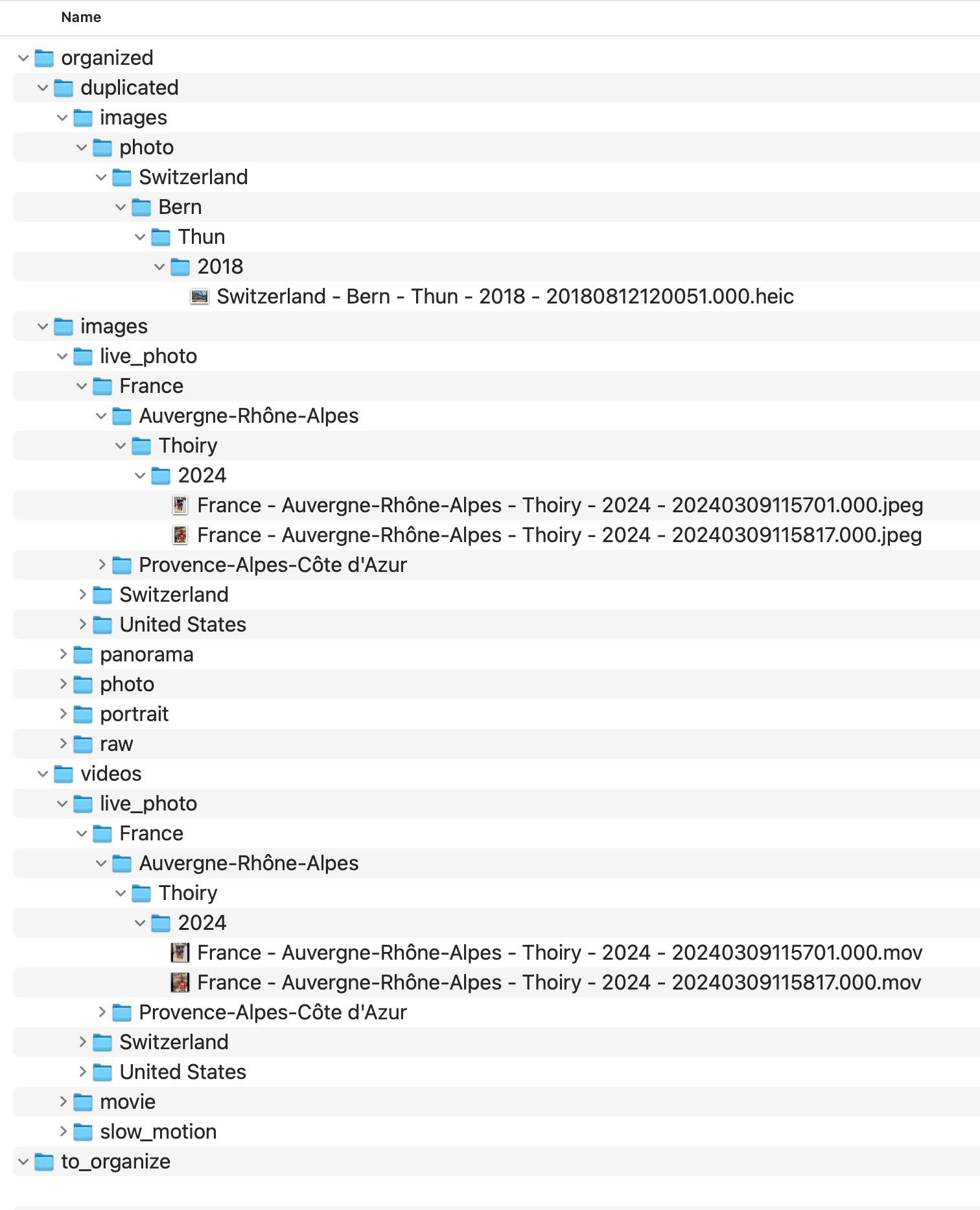
Keep one Target folder and process each Photos library independently into that same Target.
- Each library is processed one by one.
- The Target remains constant.
- Naming collisions are isolated under a duplicate review area.
- Missing GPS files are isolated under an explicit review area for missing location context.

Step 4: Import the clean archive (optional)
Once consolidation is complete, you can:
- Import the clean Target into a new Photos library.
- Keep the Target as your canonical archive and use Photos only as a catalog.
The key benefit is structural clarity: your archive remains understandable and rebuildable even outside Apple Photos or iCloud.
FAQ
Does MediaOrganizer connect to iCloud?
No. MediaOrganizer works entirely locally and processes only files present on disk.
What happens if I leave “Optimize Mac Storage” enabled?
If only reduced‑resolution files are stored locally, those reduced files will be processed. To preserve full resolution, download originals before processing.
Can I process multiple iCloud‑synced libraries?
Yes. Treat each .photoslibrary as a Source and consolidate them into the same Target.
Where media normalization fits
The file-level problem described in this guide is one part of a broader media normalization workflow: establishing deterministic structure, explicit exceptions and tool-independent organization before relying on Lightroom, Apple Photos or any DAM system.
Related guides
- Merge Multiple Photos Libraries on Mac
- Move a Photos Library to a New Mac
- Organize Photos Across Multiple Macs and Devices
- Remove Duplicate Photos on Mac