Move a Photos Library to a New Mac
A safer migration workflow: extract Apple Photos libraries read‑only, consolidate into one deterministic Target, then import a clean archive on the destination Mac.
This guide follows a file-level media normalization approach — establishing deterministic file structure before importing media into catalog or DAM systems.
The common migration problem
Moving to a new Mac often means moving your Apple Photos library too.
Sometimes it is a single .photoslibrary.
Sometimes it is multiple libraries accumulated over years: old Macs, external drives, partial exports, or backups.
The files are usually there — but the structure becomes implicit. A Photos library is a catalog container. It is not a long‑term, rebuildable folder structure.
A deterministic way to migrate
Instead of treating migration as “copy one library and hope it opens”, you can migrate in two phases:
- Extract and consolidate your Photos libraries into a clean, deterministic archive.
- Import the clean Target on the destination Mac.
This workflow is safer, because it gives you a canonical, file‑level archive outside any single Photos catalog.
Step 1: Identify all Photos libraries
On the source Mac, locate your Photos libraries (files ending in .photoslibrary).
Also check for additional libraries stored on external drives.
It is common to discover more than one library: an old archive, a “temporary” library, or a previous migration attempt.

.photoslibrary) as Source. Extraction is read‑only — no manual export required.Step 2: Keep one Target, process libraries one by one
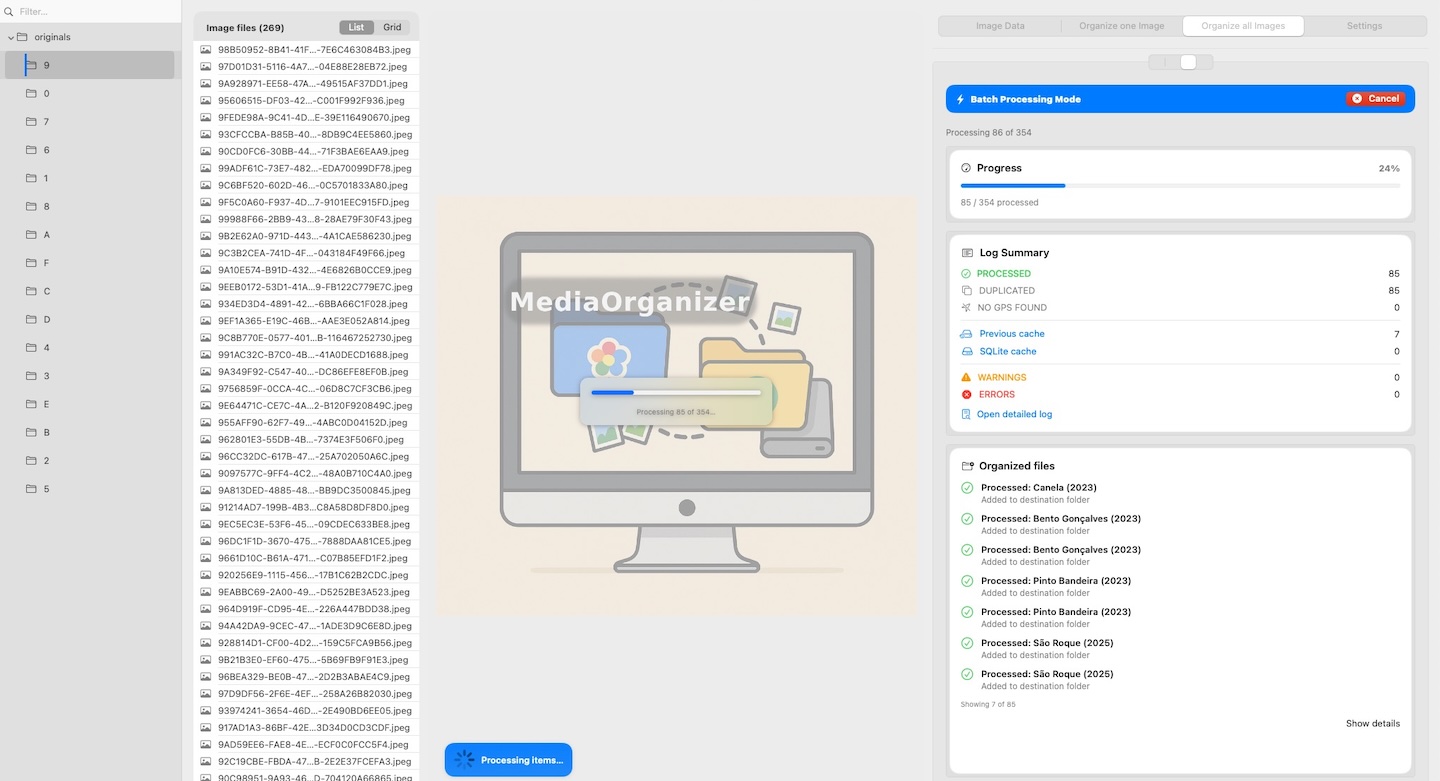
Keep one Target folder that will become your canonical archive. Then process each Photos library independently into the same Target.
- Each library is a Source. Repeat the workflow for each
.photoslibrary. - The Target stays the same. MediaOrganizer consolidates everything into one deterministic structure.
- No overwrites. Collisions are isolated under a duplicate review area for review.

Step 3: Review duplicates and missing GPS (optional)
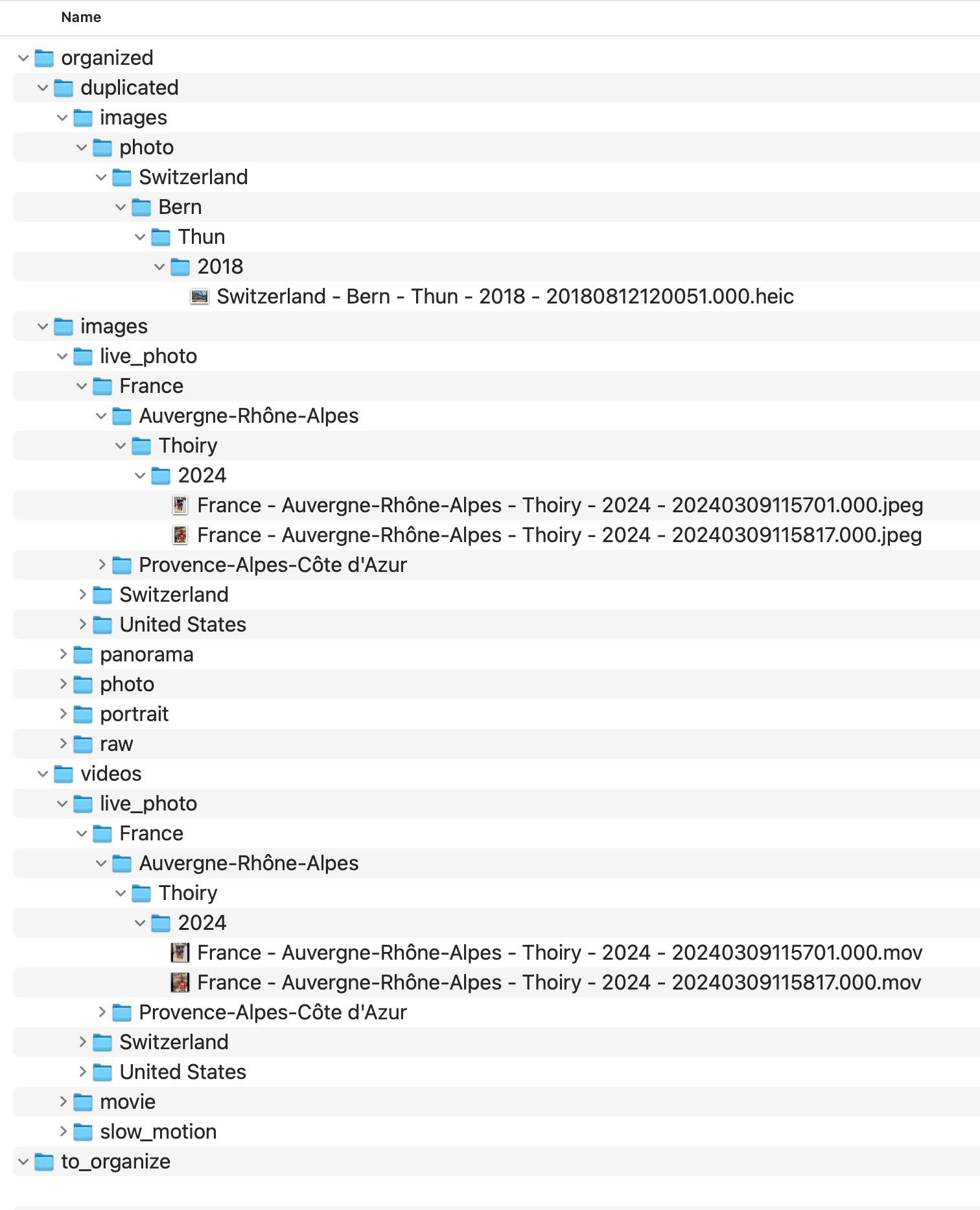
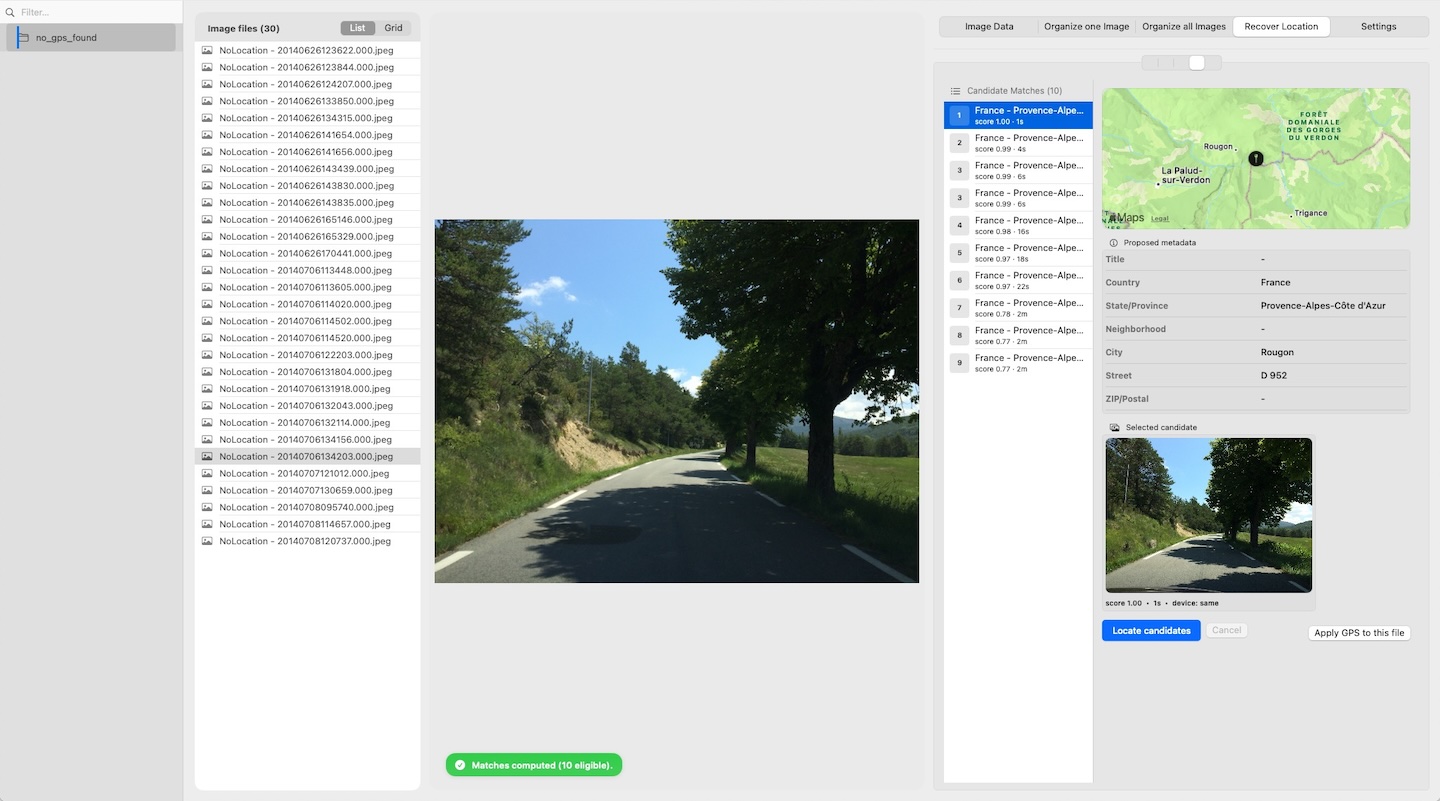
After consolidation, you may have two explicit exception areas:
- a duplicate review area — naming collisions isolated to prevent overwrites.
- an explicit review area for missing location context — media without GPS, ready for optional manual recovery.
You can ignore these on day one and still migrate successfully. Or you can clean them before import for a “canonical only” target.
Step 4: Import the clean Target on the destination Mac
On the new Mac, you now have a clean, deterministic archive. Import it into Apple Photos as a single, consistent source.
You can also keep the Target as your long‑term archive and use Photos only as a viewing/editing catalog. The key difference is that your structure remains rebuildable outside Photos.
FAQ
Do I need to export from Photos first?
No. MediaOrganizer can process Apple Photos libraries (.photoslibrary) directly.
Extraction is read‑only — no manual export required.
What if I have more than one Photos library?
Process each library independently into the same Target. MediaOrganizer consolidates everything into one deterministic structure while preventing overwrites.
Will this overwrite anything?
No. If a destination name already exists in the Target, the incoming file is treated as a collision and is isolated in a duplicate review area. Nothing is overwritten or silently removed.
Can I migrate without reviewing duplicates first?
Yes. You can import the main deterministic structure and review a duplicate review area later. The workflow is designed to keep exceptions explicit and safe.
Where media normalization fits
The file-level problem described in this guide is one part of a broader media normalization workflow: establishing deterministic structure, explicit exceptions and tool-independent organization before relying on Lightroom, Apple Photos or any DAM system.
Related guides
- Merge Multiple Photos Libraries on Mac
- Organize Photos Before Lightroom Import
- Consolidate Photos and Videos from Multiple External Drives
- Organize Photos Across Multiple Macs and Devices
- Remove Duplicate Photos on Mac
- Merge iCloud Photos with a Local Library