Consolidate Photos and Videos from Multiple External Drives on Mac
A deterministic workflow to rebuild a single, understandable archive from scattered external disks — without silent overwrites or risky “delete duplicates” automation.
This guide follows a file-level media normalization approach — establishing deterministic file structure before importing media into catalog or DAM systems.
The real problem
External drives are where photo and video archives go to “live forever”… until you have too many of them. One disk from an old Mac. A travel SSD. A backup drive. A partial copy from a migration.
Technically, your media is safe. Structurally, it’s fragmented — and fragmentation is what creates long‑term chaos:
- the same event exists on multiple drives
- folder naming conventions drift over the years
- duplicates appear silently (and you don’t know which copy is the “real” one)
- location metadata is missing for part of the archive
This guide shows a safe consolidation approach: rebuild a single deterministic archive at the file layer first, then (optionally) import that archive into Photos or Lightroom.
What not to do
The most common mistake is dragging folders from multiple drives into one destination and letting Finder “merge”. It feels fast — but it’s how you get:
- silent overwrites (same filename in different folders)
- hidden duplicates (same photo copied multiple times)
- future uncertainty (you can’t reproduce the result)
A safer goal: deterministic identity + explicit exceptions
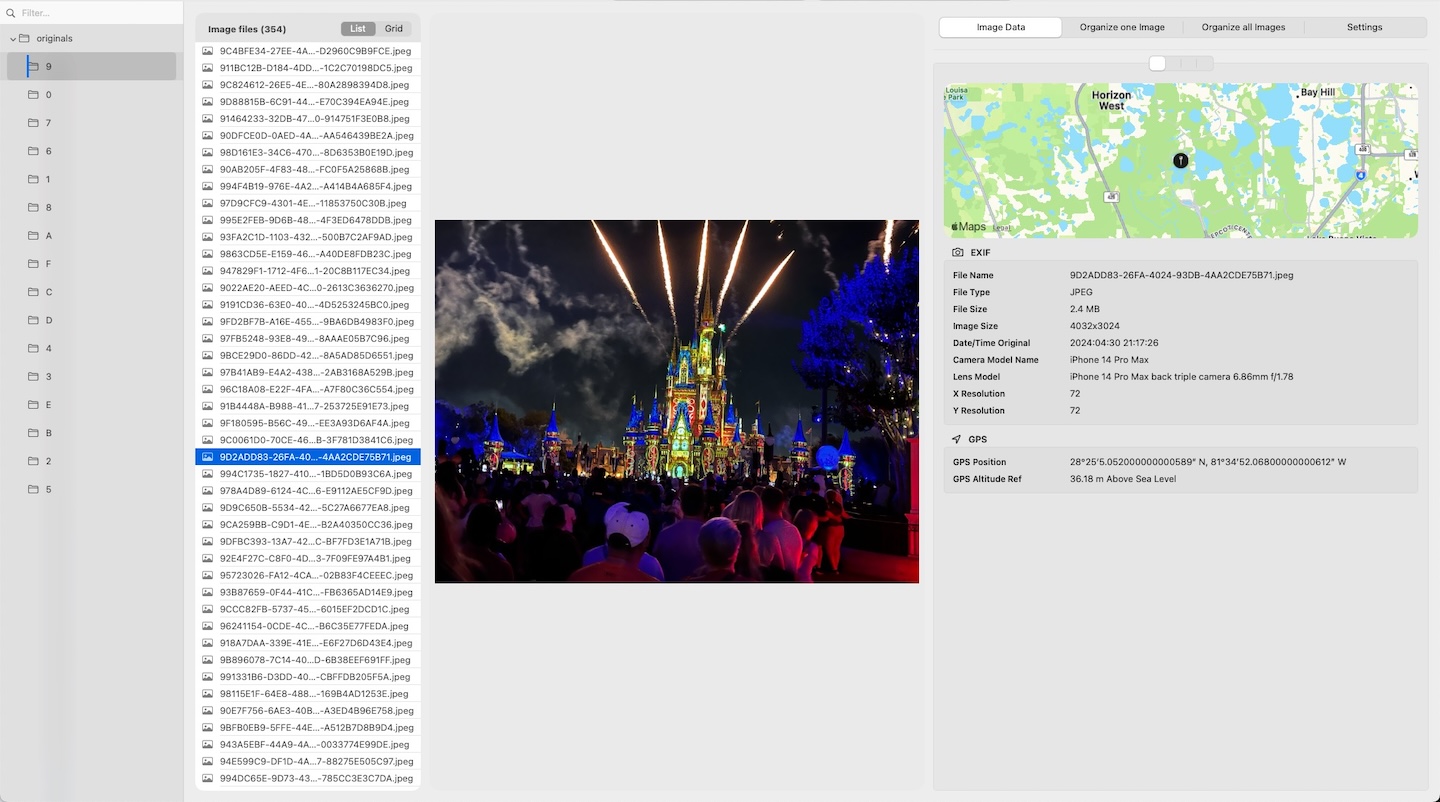
Instead of trusting old folder names, define identity from capture metadata:
- EXIF DateTimeOriginal (including sub‑second precision)
- GPS coordinates (when available)
Then rebuild a target structure from that identity. The key: never overwrite and never delete duplicates automatically.
Safe consolidation principles on macOS
A safe consolidation should keep sources understandable, avoid destructive merging, preserve conflicts for review, and create one stable destination through a controlled workflow.
MediaOrganizer handles this through its interface and internal rules, rather than requiring users to maintain their own scripts.
Duplicate handling: isolate, don’t delete
When you consolidate multiple drives, you will have duplicates. But automatic deletion is where people lose trust — and sometimes lose data.
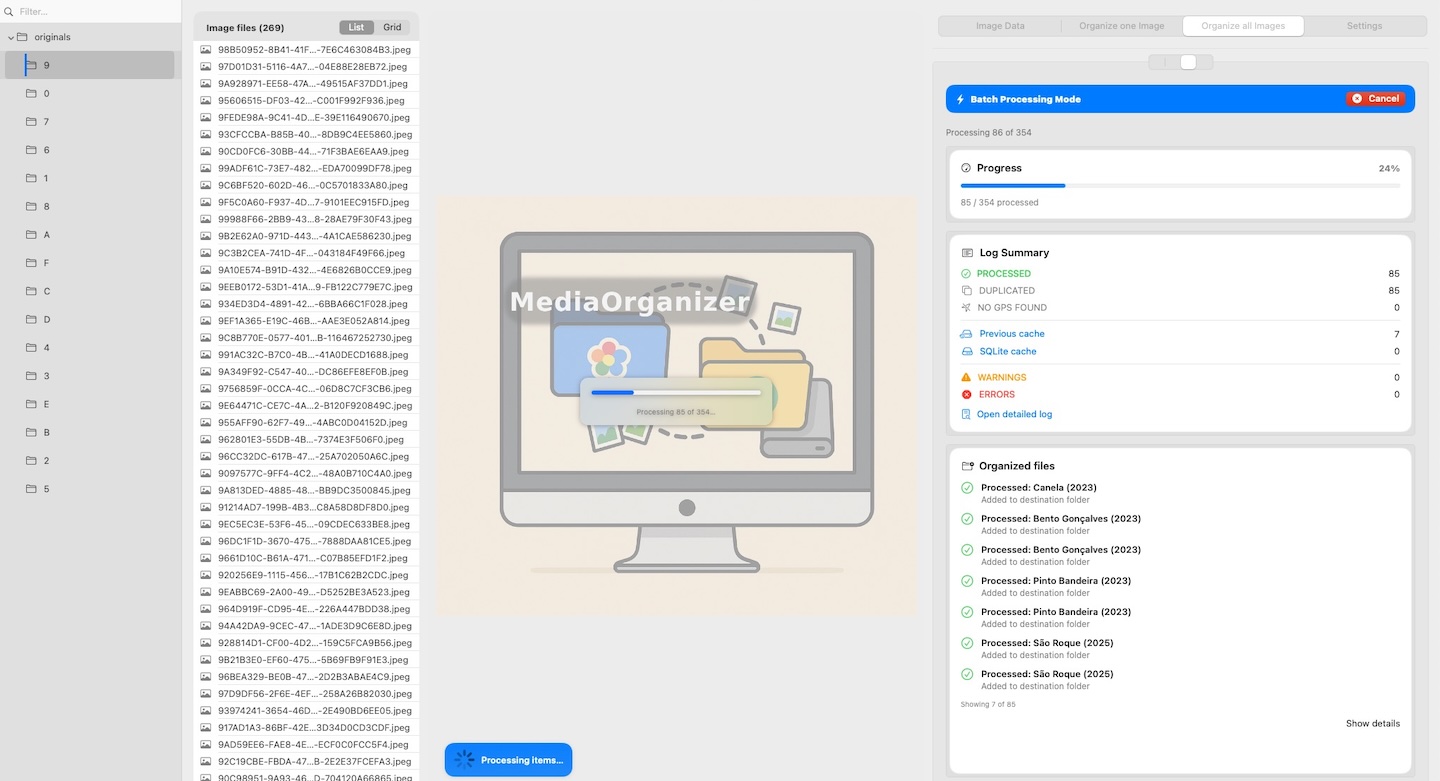
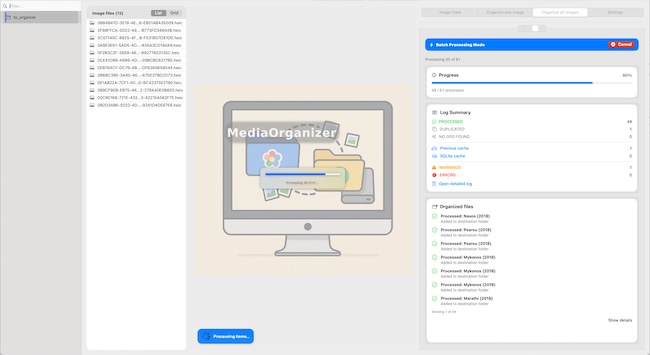
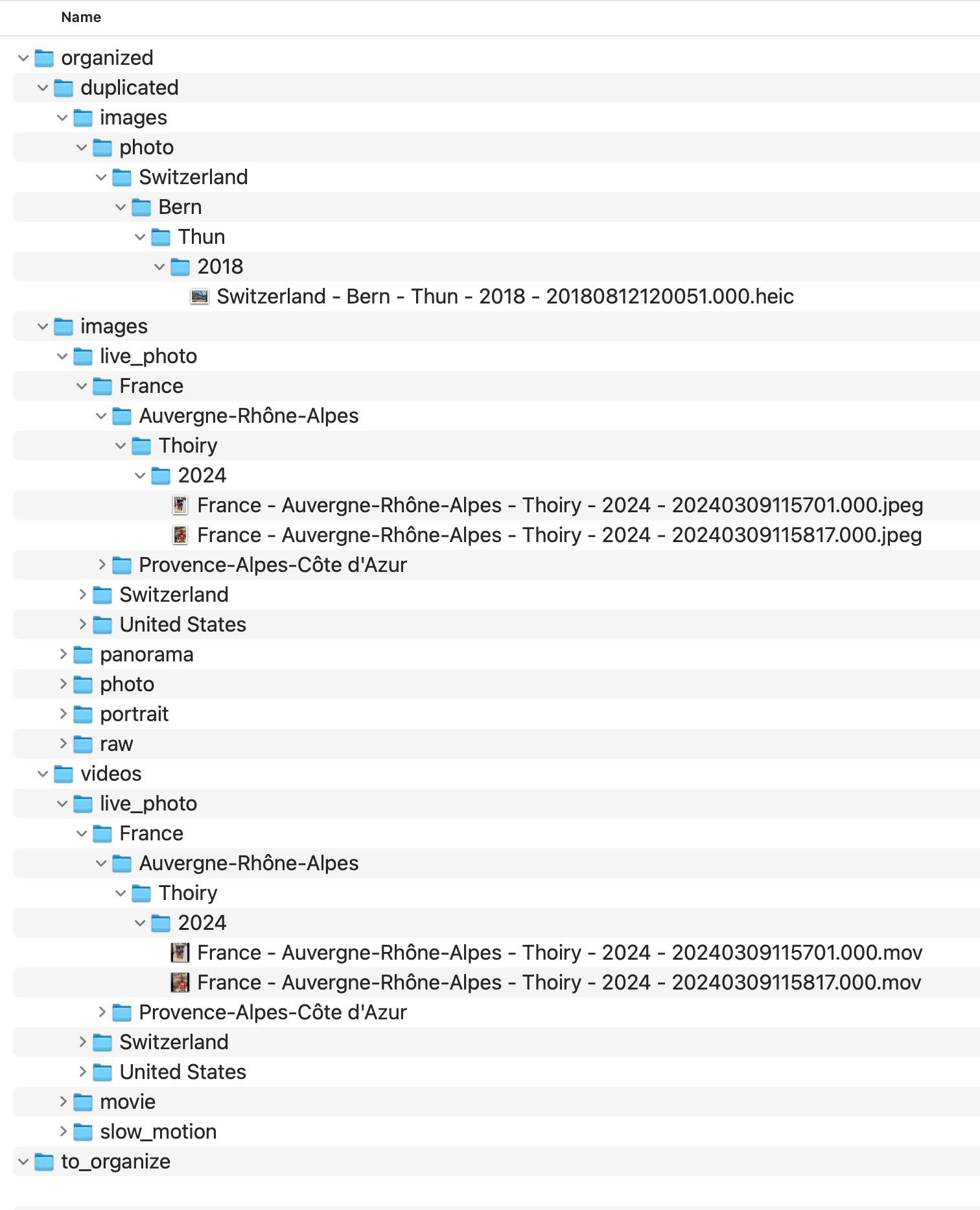
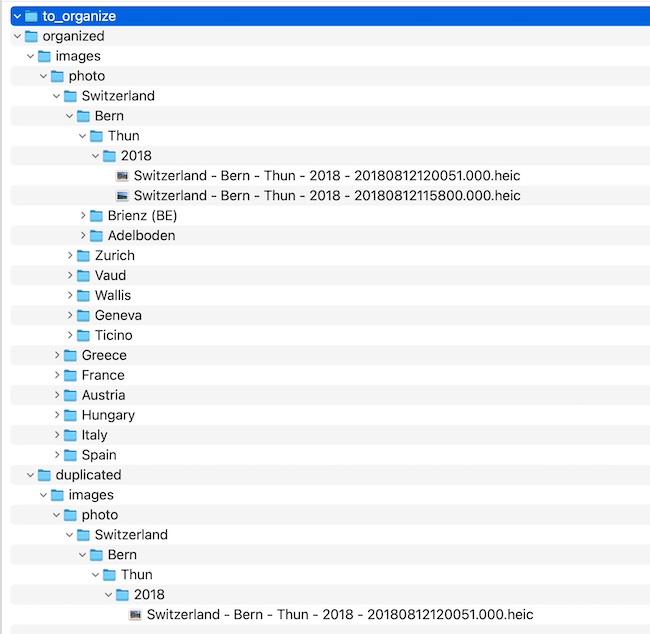
MediaOrganizer treats potential conflicts as reviewable exceptions. Nothing is overwritten or deleted automatically, and the exact handling rules remain inside the application.
MediaOrganizer keeps the exact destination layout and conflict-handling rules inside the application. The public guide focuses on the archive principle: organized media stays separated from reviewable exceptions.
Missing GPS: photos rarely exist alone
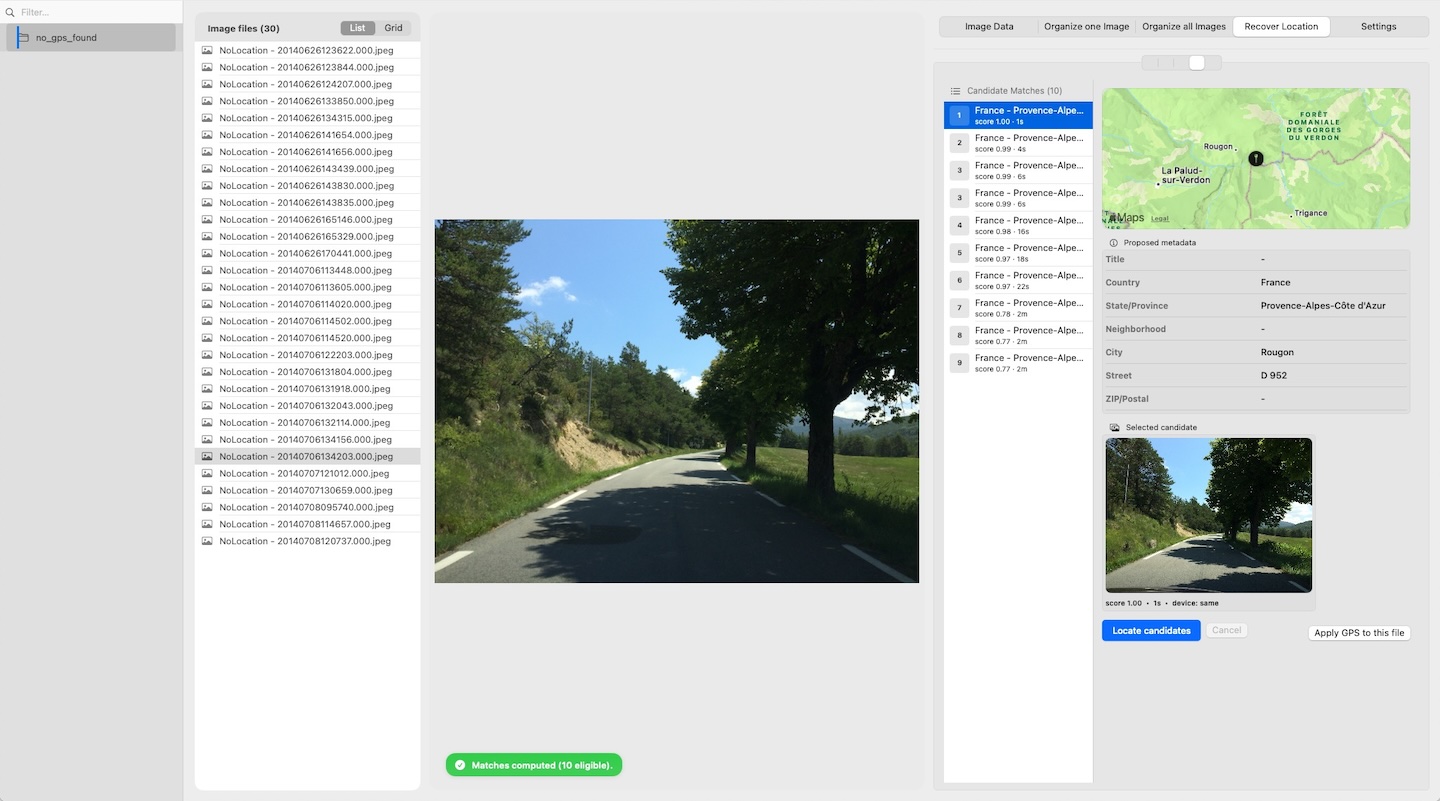
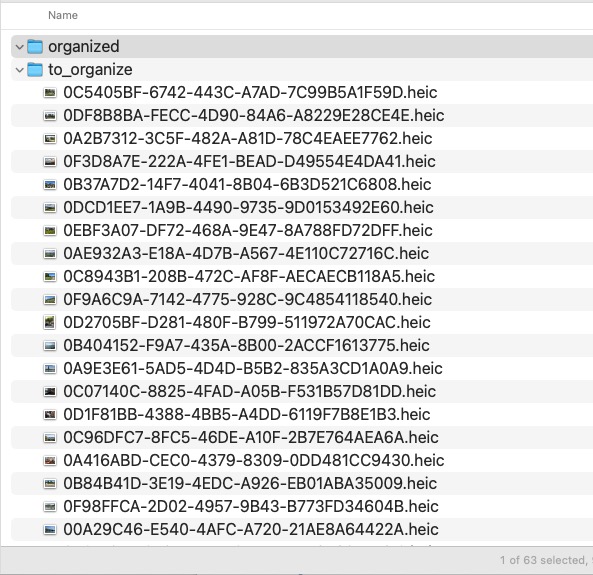
Some media has no GPS. Instead of guessing, keep those files separate for review.
In practice, photos and videos are rarely isolated: they belong to a trip, event, or session. That’s why a useful manual approach is to review missing‑GPS media inside a review context and use existing archive context to support reviewable location recovery.
After you manually confirm a location for a missing‑GPS file, it can move into the deterministic structure. If that move creates a collision, it is automatically isolated into an explicit review area.
MediaOrganizer keeps the exact destination layout and conflict-handling rules inside the application. The public guide focuses on the archive principle: organized media stays separated from reviewable exceptions.
Example screens (MediaOrganizer workflow)
MediaOrganizer Studio was designed for exactly this consolidation stage: it processes normal folders (including external drives) and can also extract Apple Photos libraries read‑only, producing a deterministic Target that stays meaningful outside any catalog.

FAQ
Will this overwrite my originals?
A safe consolidation workflow never overwrites originals. If you process folders, you will move the photos and videos to Target folder. In both cases, collisions are isolated into an explicit review area — nothing is overwritten.
What exactly counts as a “duplicate” here?
“Duplicate” means a structural identity collision in the Target. Identity is derived from EXIF DateTimeOriginal (with high-quality metadata) and GPS when available. Collisions are isolated for review — not deleted.
What about videos?
Videos are treated the same way as photos: identity comes from capture metadata. The goal is one coherent archive containing both photos and videos under the same deterministic rules.
What happens to files without GPS?
They are isolated in an explicit review area for missing location context. You can review them in a review context (trip/event context) and apply location manually. After recovery, the file moves into the deterministic structure (or to an explicit review area if it collides).
Where media normalization fits
The file-level problem described in this guide is one part of a broader media normalization workflow: establishing deterministic structure, explicit exceptions and tool-independent organization before relying on Lightroom, Apple Photos or any DAM system.
Related guides
- Merge Multiple Photos Libraries on Mac
- Organize Photos Before Lightroom Import
- Organize Photos Across Multiple Macs and Devices
- Remove Duplicate Photos on Mac
- Move a Photos Library to a New Mac
- Merge iCloud Photos with a Local Library