Remove Duplicate Photos on Mac
A safe way to handle duplicates without risking data loss: isolate collisions into a reviewable explicit review areas structure instead of deleting anything.
This guide follows a file-level media normalization approach — establishing deterministic file structure before importing media into catalog or DAM systems.
Why duplicates keep coming back
Duplicate photos on macOS are rarely caused by a single mistake. They usually appear gradually:
- Mac upgrades and migrations (imports repeated on a new machine)
- Multiple backups (external drives with overlapping events)
- AirDrop and messaging (copies with different filenames)
- Mixed workflows (Apple Photos + Finder folders + exports)
The worst part is not the duplicates themselves. It is the uncertainty: Which copy is the one I should keep?
Two ways to detect duplicates
1) Content-based (hash)
Hash-based approaches compare file content by reading the full file and computing a fingerprint. This can be accurate, but it is also expensive at scale — especially with large video files and archives spread across drives.
2) Structure-aware duplicate review
MediaOrganizer Studio focuses on a different problem: preventing accidental overwrites and keeping your archive deterministic. Instead of trying to prove two files are identical, it detects when two files would resolve to the same final destination name.
In practice, this happens when multiple sources contain the same capture (or multiple copies of it) and your naming rules produce the same destination path and filename.
How MediaOrganizer handles duplicates (without deleting)
MediaOrganizer Studio never overwrites files in the Target. When a file in the Target already exists with the same final name, the incoming file is treated as a collision.
Potential conflicts remain reviewable so you can inspect them later. Nothing is silently removed.

What happens to potential duplicates
- Reviewability: potential duplicates remain visible for inspection.
- No overwrites: the app does not silently replace files.
- Auditability: review areas are not trash; they preserve uncertainty safely.
Example
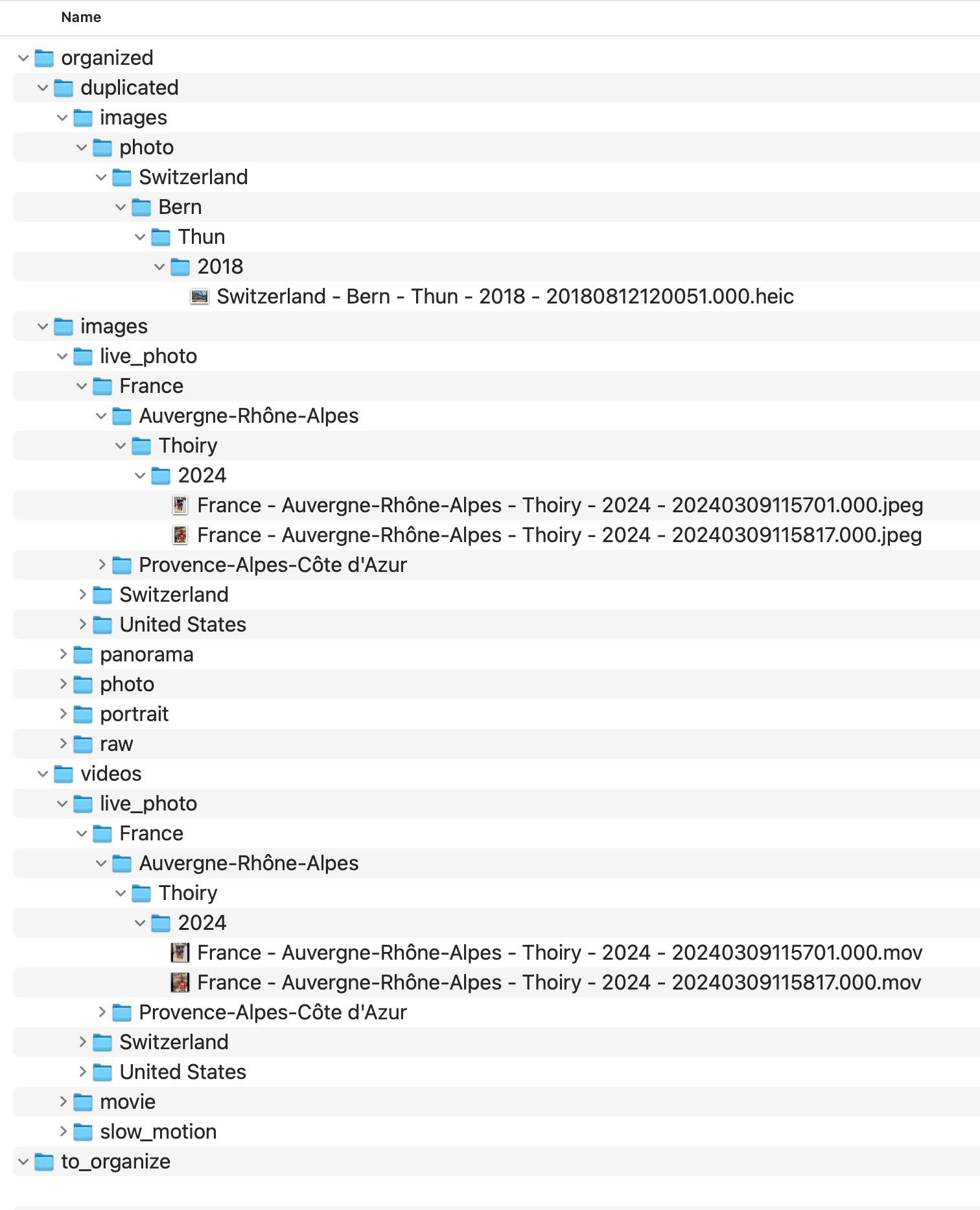
When multiple sources contain overlapping media, MediaOrganizer keeps the canonical archive clean and preserves conflicts for review:
MediaOrganizer keeps the exact destination layout and conflict-handling rules inside the application. The public guide focuses on the archive principle: organized media stays separated from reviewable exceptions.
The canonical copy stays in the main structure. Additional conflicts remain reviewable when necessary.
Move vs copy (important)
- Regular folders: files are moved into the Target during processing.
- Apple Photos libraries (.photoslibrary): extraction is read-only (copied), no manual export required.
Re-organizing your duplicates
Because explicit review areas keeps a clean structure, it can become a new Source later. You can process your duplicates into a new Target, keep them organized, and decide what to keep — without mixing them back into the canonical archive.
FAQ
Does MediaOrganizer delete duplicates?
No. It isolates naming collisions in explicit review areas so you can review them manually.
Is this the same as hash-based deduplication?
No. MediaOrganizer does not compute content hashes. It prevents overwrites by detecting destination naming collisions under your configured naming rules.
Will this overwrite my originals?
As with any consolidation workflow, it is recommended to operate on backed-up drives. The app never overwrites files in the Target. Collisions are isolated and kept organized for review.
What about photos without GPS?
Missing GPS is handled explicitly in an explicit review area for missing location context, and can be recovered manually using a review context (trip/event context). After recovery, the file moves into the deterministic structure (or into an explicit review area if it collides).
Where media normalization fits
The file-level problem described in this guide is one part of a broader media normalization workflow: establishing deterministic structure, explicit exceptions and tool-independent organization before relying on Lightroom, Apple Photos or any DAM system.
Related guides
- Merge Multiple Photos Libraries on Mac
- Organize Photos Before Lightroom Import
- Consolidate Photos and Videos from Multiple External Drives
- Organize Photos Across Multiple Macs and Devices
- Move a Photos Library to a New Mac
- Merge iCloud Photos with a Local Library