How to Merge Multiple Photos Libraries on Mac (Without Duplicate Chaos)
A deterministic workflow for consolidating multiple .photoslibrary files into a single, rebuildable archive — without uncontrolled duplication.
This guide follows a file-level media normalization approach — establishing deterministic file structure before importing media into catalog or DAM systems.
The real problem
Most people don’t intentionally create multiple Photos libraries. It happens after buying a new Mac, restoring from Time Machine, migrating from external drives, or using iCloud Photos across devices.
At some point you discover you now have two (or more) .photoslibrary files — and you want one clean library.
The obvious move is to import one library into another. That often “works”… until it doesn’t.
- Duplicates accumulate silently.
- Filenames remain implicit (IMG_1234.JPG, etc.).
- The result depends on the order of imports.
- Years later, rebuilding becomes harder because structure was never made explicit.
Merging inside Photos is catalog-driven. It does not normalize your archive at the file level. This guide shows a deterministic workflow that makes the archive rebuildable first — and only then rebuilds a clean Photos library from it.
Why “just merge the libraries” often fails
Photos libraries are isolated containers. Each one has its own internal catalog and assumptions. When you import Library A into Library B, Photos reconciles content based on catalog identity, not on a deterministic file identity you control.
That’s why the outcome can vary depending on:
- Import order (A→B vs B→A)
- Previous partial merges
- Edited vs original media
- iCloud optimization state
- Metadata drift across devices
If your goal is long-term stability, the merge must be reproducible. That requires deterministic identity and explicit structure.
A deterministic merge workflow
MediaOrganizer does not “merge catalogs.” It builds a deterministic Target structure by copying media out of each Photos library (read-only), then you rebuild a clean Photos library by importing the Target.
Prerequisite — Make sure originals are accessible
- If you use iCloud Photos, prefer “Download Originals” before processing.
- Ensure external drives containing your libraries are mounted and stable.
- Confirm each
.photoslibraryopens (so you know it’s not corrupted).
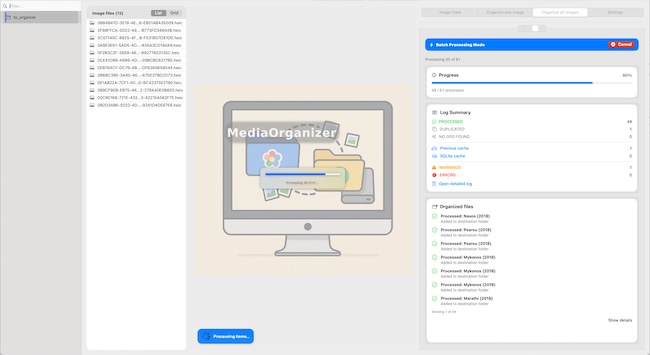
Step 1 — Process each Photos library separately
Repeat this for every .photoslibrary you want to consolidate:
- Select the Photos library as a Source in MediaOrganizer.
- Choose a Target directory (the same Target for all libraries in this merge).
- Run the organizer.
The original Photos library remains unchanged. MediaOrganizer reads it and copies media files into the Target.

Step 2 — Deterministic identity (timestamp + location)
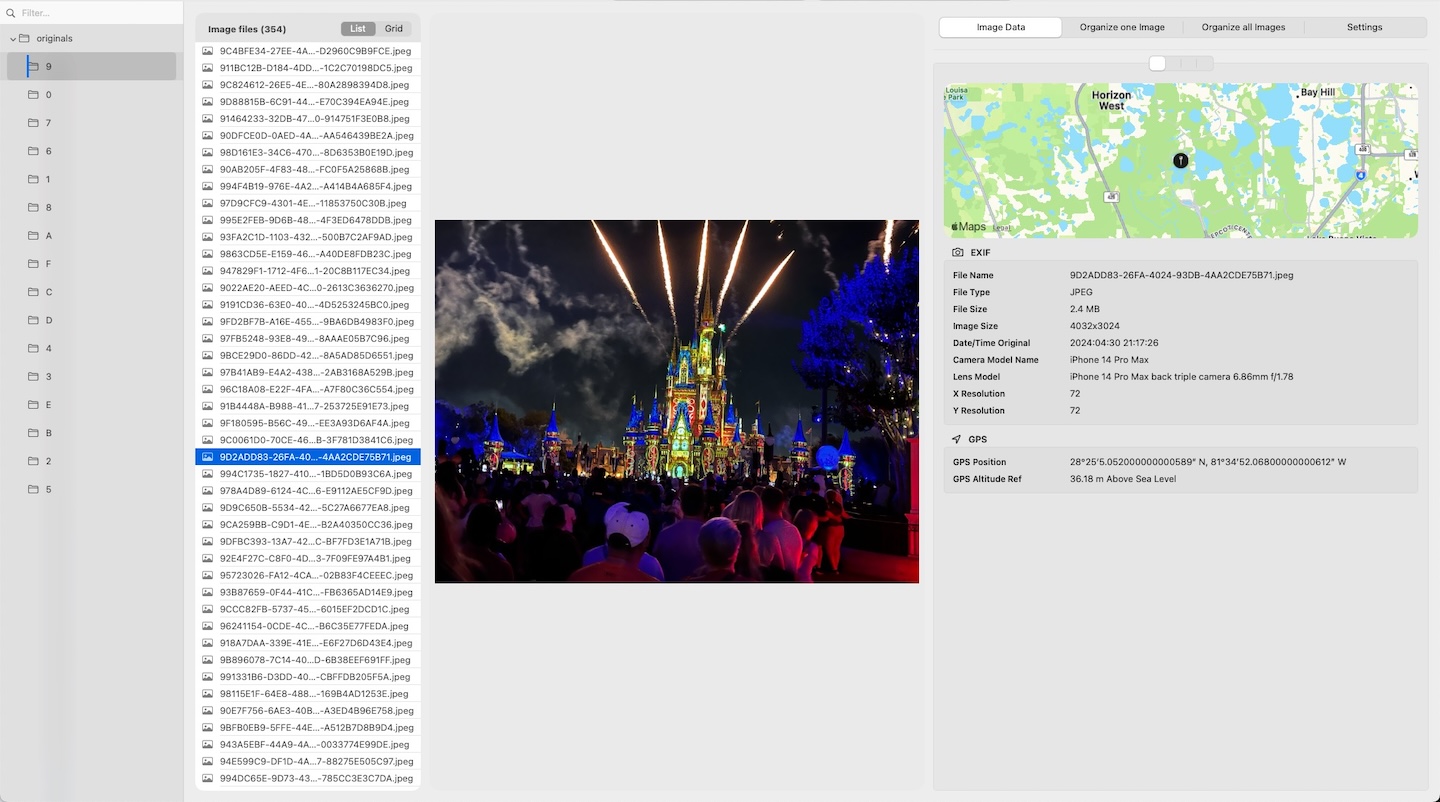
MediaOrganizer defines structural identity using:
- EXIF DateTimeOriginal (including high-quality metadata)
- GPS coordinates (when available)
This is what makes the workflow stable even with multiple devices. Different devices can legitimately produce very similar metadata — but in different locations. Timestamp + GPS avoids treating those as duplicates.
The Target is deterministic: if you process the same sources again, you get the same structure and filenames.

Step 3 — Duplicate isolation (never overwrite)
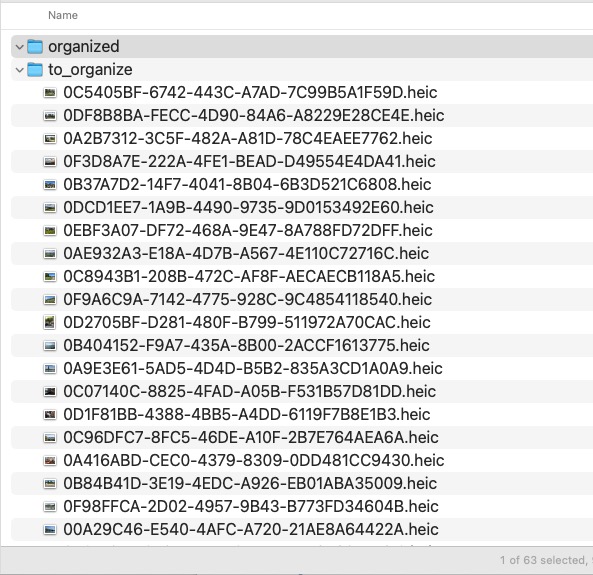
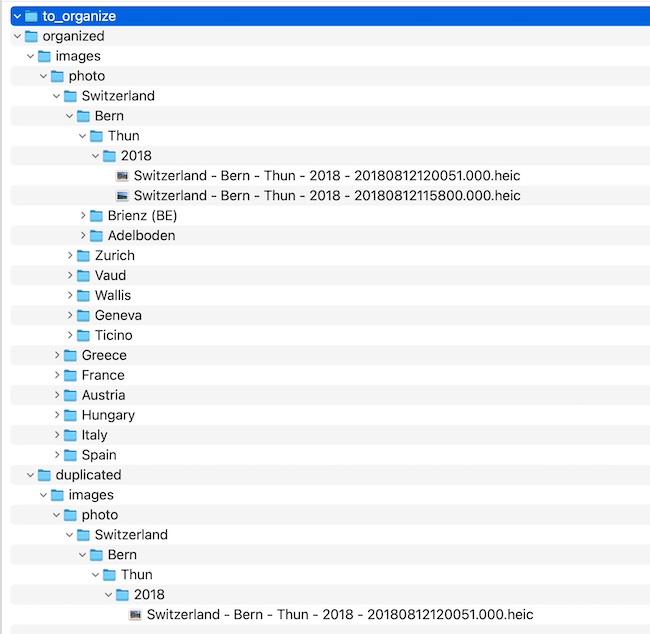
When a file would land on an existing identity in the Target, MediaOrganizer does not overwrite anything. Instead, it keeps the incoming media reviewable and avoids overwriting existing files.
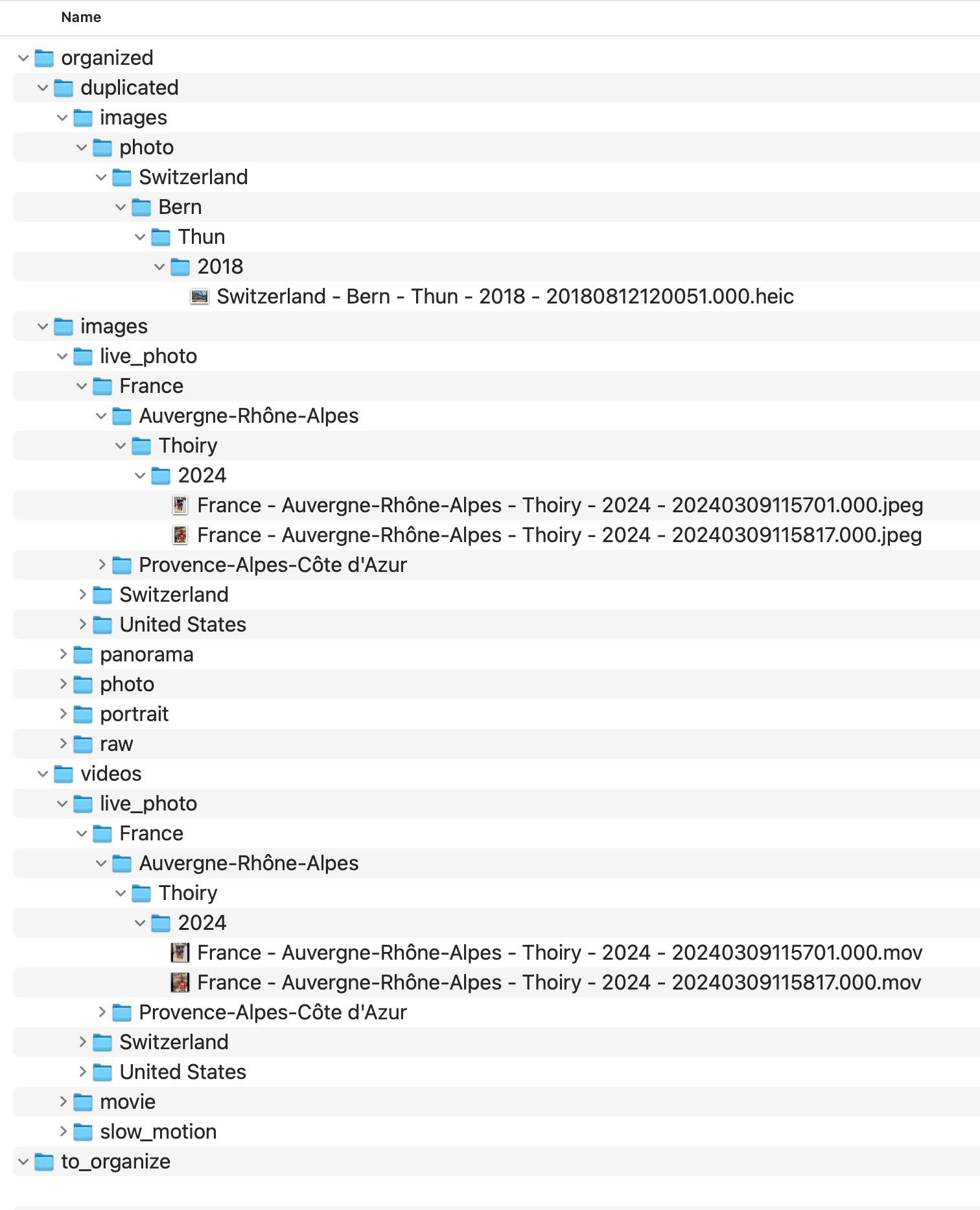
MediaOrganizer keeps the exact destination layout and conflict-handling rules inside the application. The public guide focuses on the archive principle: organized media stays separated from reviewable exceptions.
This is key for trust: duplicates are segregated for review — not deleted, not merged silently, not overwritten.
Step 4 — Handle media without GPS
Some media files don’t include GPS coordinates. Those files remain visible for manual review instead of being forced into guessed locations.
MediaOrganizer keeps the exact destination layout and conflict-handling rules inside the application. The public guide focuses on the archive principle: organized media stays separated from reviewable exceptions.
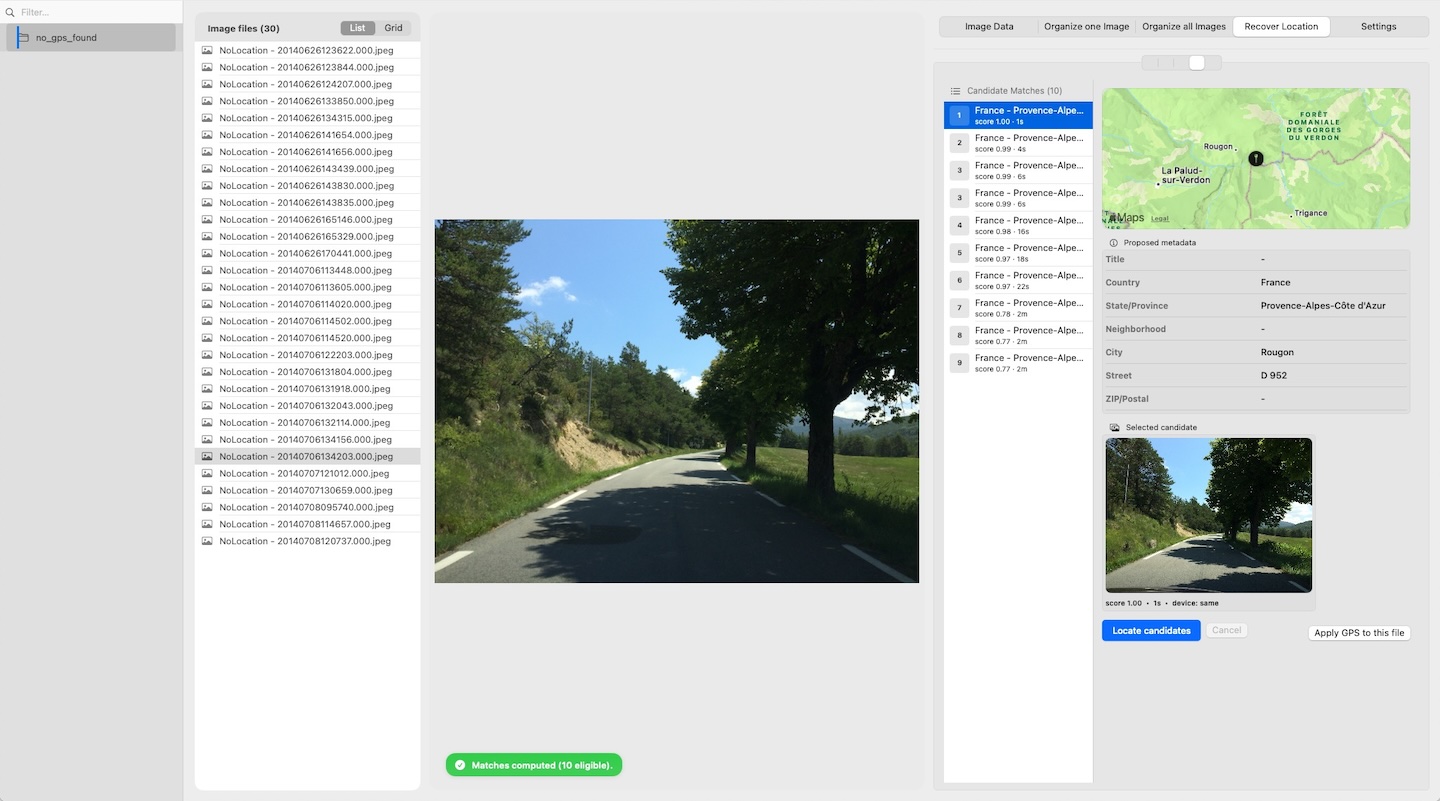
Recover Location (manual review)
Recover Location lets you assign coordinates by looking at nearby media that already has GPS. You review contextual evidence before applying a location manually.
After applying a recovered location:
- The media can move from review into the organized archive after validation.
- If the result conflicts with an existing file, the conflict remains reviewable.
Files without EXIF DateTimeOriginal
If a media file does not contain a valid DateTimeOriginal, MediaOrganizer cannot derive deterministic identity.
Those files are skipped and recorded in a processing log as “not processed”.
Final step — rebuild a clean Photos library
After processing all source libraries into the Target:
- Create a new empty Photos library.
- Import the organized Target directory.
- Let Photos rebuild previews and indexing.
Your new Photos library will contain:
- Media files with deterministic filenames you control
- One canonical identity per capture moment + location
- Duplicates isolated in explicit review areas
- Media without GPS isolated (and recoverable) under an explicit review area for missing location context
FAQ
Does MediaOrganizer modify my original Photos libraries?
No. When a Photos library is used as Source, MediaOrganizer reads it and copies media into the Target. Your original libraries remain unchanged.
What exactly counts as a “duplicate” in this workflow?
“Duplicate” means a structural identity collision in the Target. Identity is derived from EXIF DateTimeOriginal (with high-quality metadata) and GPS coordinates (when available). Collisions are isolated in explicit review areas — nothing is overwritten.
What if two different photos share the same timestamp?
Timestamp collisions are extremely rare, but they can happen. GPS context prevents false duplicates when photos were captured in different locations. If both timestamp and identity collide, the extra copy is isolated in explicit review areas for review.
What happens to photos without GPS data?
They are placed in an explicit review area for missing location context with temporary names. You can use Recover Location to assign coordinates using a guided manual review. After recovery, the file moves into the deterministic structure (or to an explicit review area if it collides).
Do I need to process all libraries into the same Target?
For a merge workflow, yes — use the same Target so MediaOrganizer can enforce deterministic identity across all sources.
Can Recover Location use a previous Target?
Yes. Recover Location operates on a Target directory. You can point it to a previous organized Target if you want to reuse an earlier organization.
Result
- Order-independent. Processing A then B yields the same final canonical set as B then A.
- Non-destructive. Source libraries remain untouched.
- Deterministic. Filenames and structure are reproducible.
- Reviewable. Duplicates and missing GPS media are isolated, not silently removed.
This workflow requires a local processing step before rebuilding a new Photos library. MediaOrganizer Studio was designed for this deterministic pre-Photos stage.
Where media normalization fits
The file-level problem described in this guide is one part of a broader media normalization workflow: establishing deterministic structure, explicit exceptions and tool-independent organization before relying on Lightroom, Apple Photos or any DAM system.
Related guides
- Organize Photos and Videos Across Multiple Macs and Devices
- Organize Photos Before Lightroom Import
- Consolidate Photos and Videos from Multiple External Drives
- Remove Duplicate Photos on Mac
- Move a Photos Library to a New Mac
- Merge iCloud Photos with a Local Library