Organize Photos Before Lightroom Import (Avoid Long‑Term Chaos)
A deterministic “file-level media normalization” workflow for cleaning up mixed archives before Lightroom catalogs them — so your library stays rebuildable outside any single catalog.
This guide follows a file-level media normalization approach.
The real problem
Lightroom is excellent at cataloging. But it will catalog whatever you feed it. If your archive already contains drift — mixed folder styles, inconsistent filenames, duplicates across drives, or missing location metadata — importing “as is” often turns those issues into long‑term complexity.
Years later, you discover the painful part: “cleaning inside Lightroom” doesn’t reliably fix the underlying file layer. You can rename and deduplicate in the catalog… but the real ambiguity often still exists on disk.
What goes wrong when you import unstructured archives
- Duplicates multiply over time (backups, exports, re-imports, multiple drives).
- Filenames stop being meaningful (camera defaults, Photos exports, random IDs).
- Near-duplicates slip through (same capture moment with minor metadata differences).
- Missing GPS becomes invisible (you only notice when searching or sorting later).
- Structure becomes catalog-dependent (hard to rebuild if the catalog is lost or corrupted).
The deterministic approach (file-level media normalization)
Instead of asking Lightroom to compensate for years of drift, normalize the archive first. The goal is to produce a canonical file set where identity is explicit and rebuildable.
Principles
- Identity from capture metadata: EXIF capture timestamp (using reliable timestamp precision) + GPS when available.
- Deterministic filenames: predictable, stable naming derived from that identity.
- Explicit collisions: never overwrite — keep conflicts reviewable.
- Explicit uncertainty: keep incomplete location context visible for manual review.
- Catalog independence: the folder structure should be meaningful without Lightroom.
One practical workflow on macOS
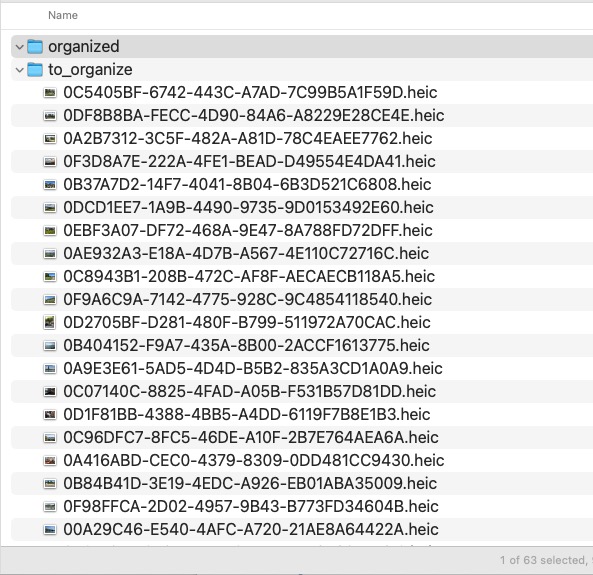
- Collect sources: external drives, camera dumps, backups, and (optionally) Photos libraries.
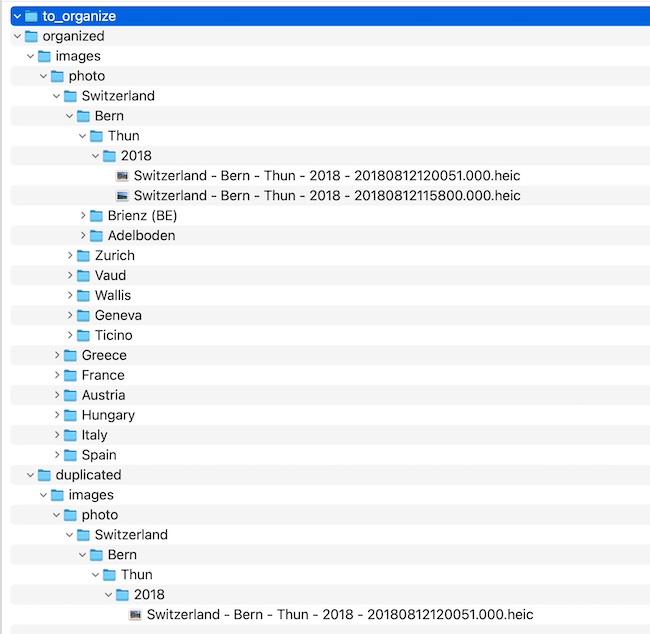
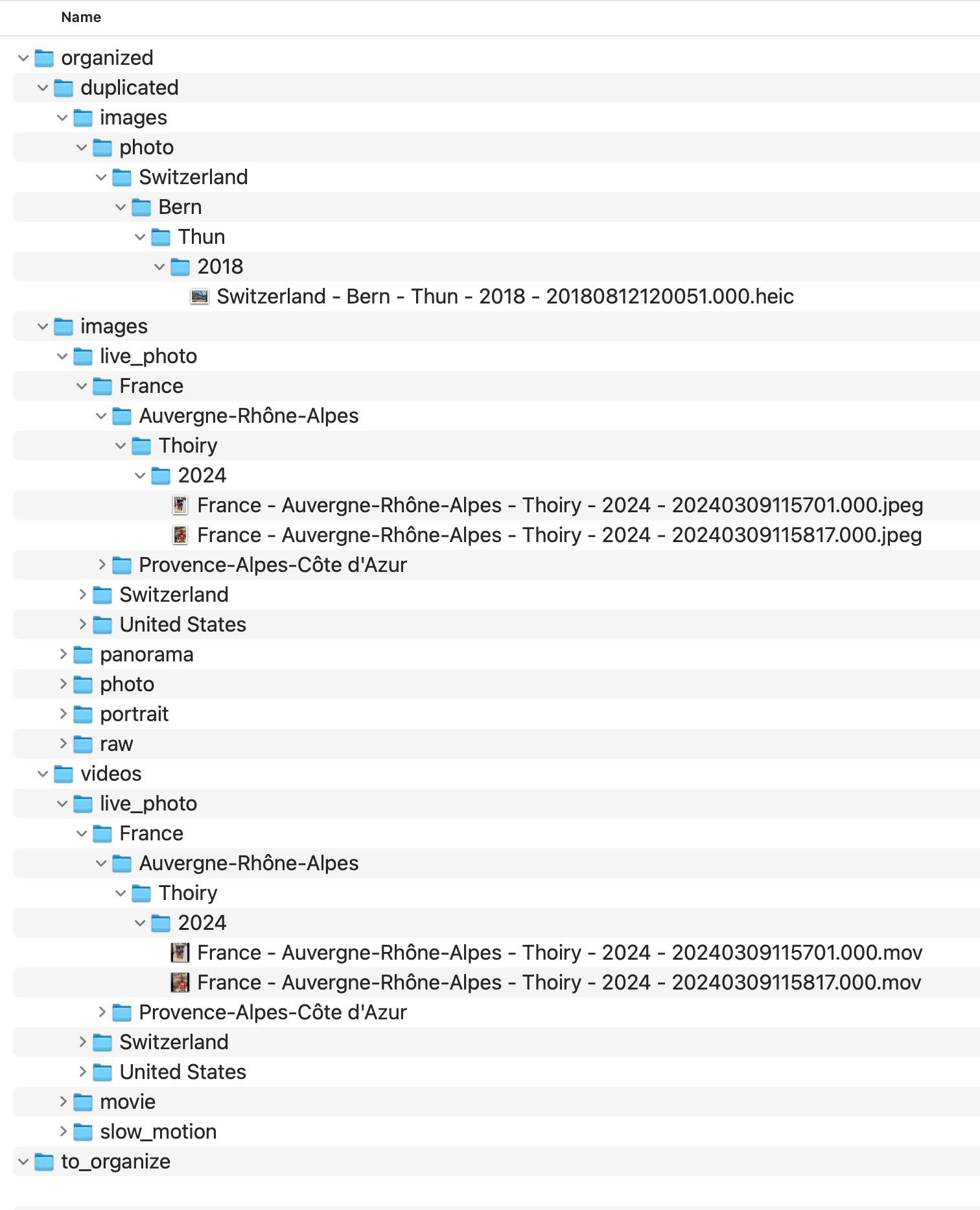
- Normalize to a single deterministic target: copy or move files into a clean structure.
- Keep duplicates explicit: conflicts stay reviewable, with no silent deletion.
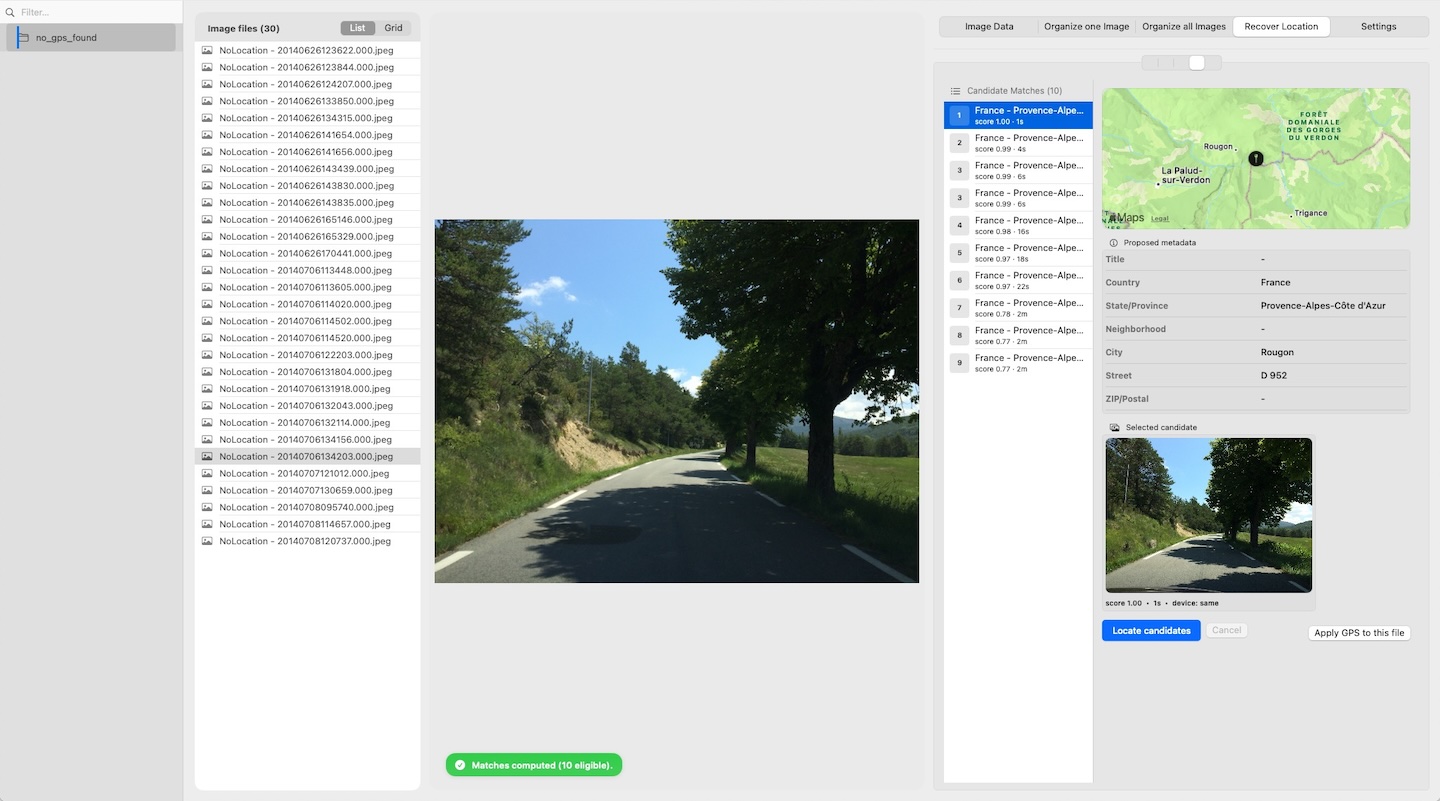
- Handle missing GPS: keep them separate until reviewed.
- Import the deterministic target into Lightroom: now the catalog indexes a coherent archive.
What “good” looks like
After file-level media normalization, the archive should have:
- Predictable paths (date/location structure as you define it).
- Predictable filenames (derived from capture metadata).
- A single canonical copy per capture identity.
- Potential duplicates kept explicit for review.
- Uncertain items kept explicit for manual resolution.
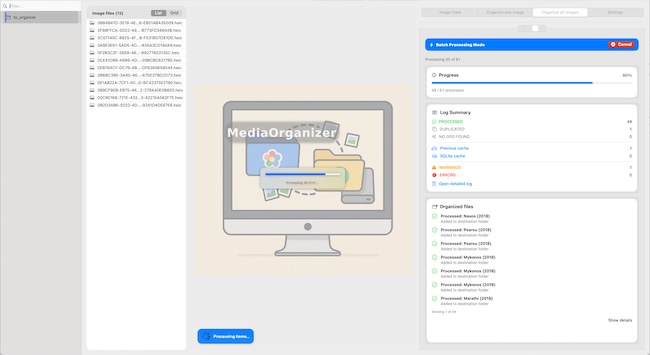
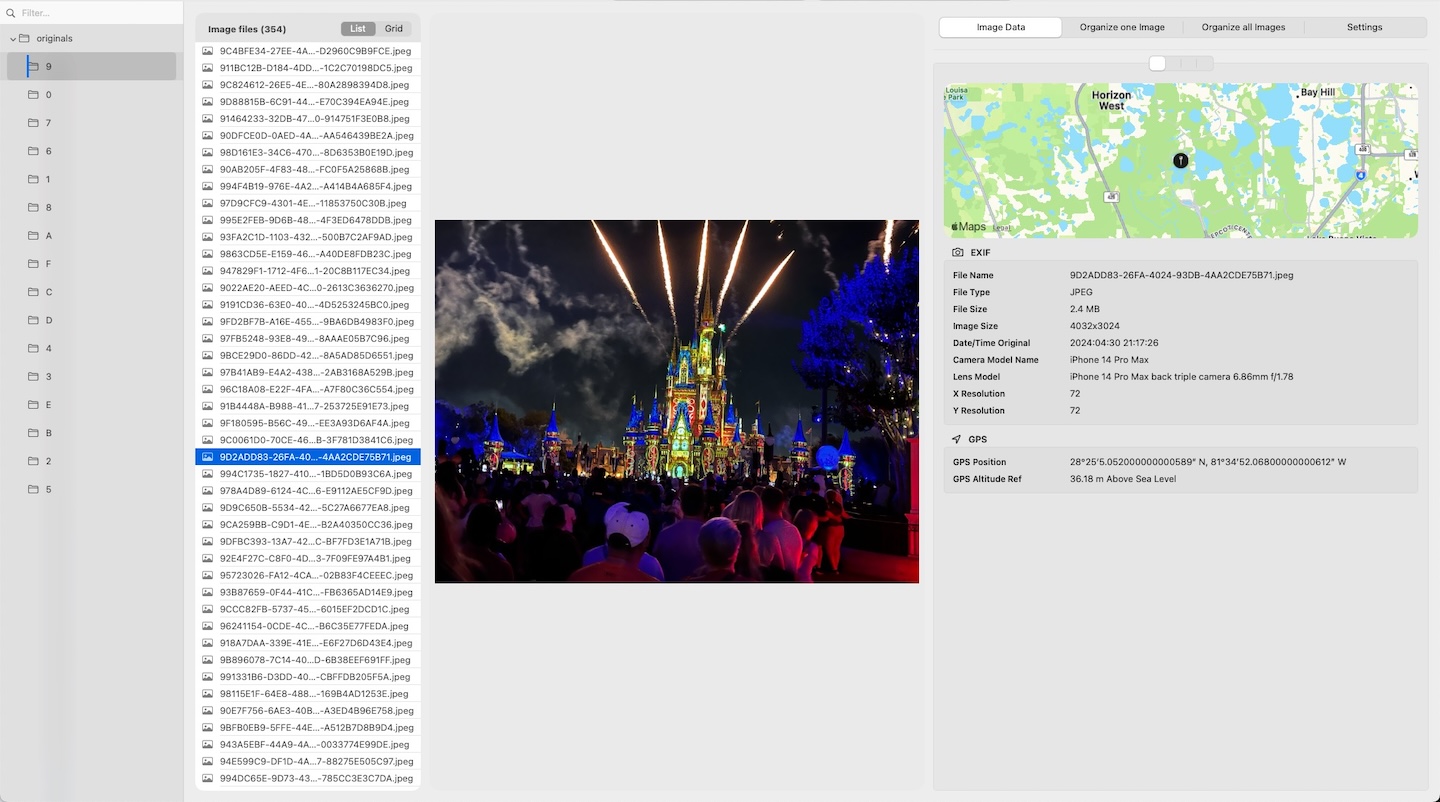
Example screens (MediaOrganizer workflow)
MediaOrganizer Studio was designed for this exact “before you import” stage: it can work with Apple Photos libraries (read‑only extraction) or with normal folders, producing a deterministic target structure you can safely import into Lightroom.


FAQ
Do I have to reorganize before importing into Lightroom?
No. But if you already have multiple sources, inconsistent naming, duplicates across drives, or missing GPS, doing file-level media normalization first usually saves you from long‑term catalog complexity.
Will this overwrite my originals?
A safe workflow never overwrites originals. Photos library sources are extracted read‑only. For folders, you can choose whether to copy or move — but collisions are isolated, not overwritten.
How are duplicates defined?
Duplicates are treated as structural collisions: files sharing the same capture identity using stable metadata evidence. Collisions remain explicit for review.
What about RAW+JPEG pairs and sidecars (XMP)?
A deterministic workflow should preserve pairs and sidecars together as part of the canonical file layer. (MediaOrganizer supports RAW+JPEG and sidecar handling.)
Where media normalization fits
The file-level problem described in this guide is one part of a broader media normalization workflow: establishing deterministic structure, explicit exceptions and tool-independent organization before relying on Lightroom, Apple Photos or any DAM system.
Related guides
- Merge Multiple Photos Libraries on Mac
- Remove Duplicate Photos on Mac
- Move a Photos Library to a New Mac
- Consolidate Photos from Multiple External Drives
- Merge iCloud Photos with a Local Library
- Organize Photos Across Multiple Macs and Devices