Why Duplicate Photos Happen in Large Photo Archives
A practical explanation of why duplicates appear across devices, imports, backups and cloud workflows in long-lived media collections.
This guide follows a file-level media normalization approach.
Duplicates are usually a structural problem
In large photo archives, duplicates rarely appear because a user intentionally created them. They usually appear because the archive itself evolved across years of devices, drives, exports, migrations and re-imports.
What looks like a simple duplicate problem is often a deeper archive-structure problem.
The same trip may exist:
- on an old external drive,
- inside a Photos library backup,
- in a folder exported for editing,
- in a cloud-synced copy,
- and again in a newer consolidated archive.
Over time, those copies drift away from one another and become harder to interpret.
How duplicates commonly enter an archive
There are several recurring patterns behind duplicate creation in long-lived collections.
1. Re-importing the same media from different sources
This is one of the most common causes. A user imports photos from a phone, later imports the same trip from a backup drive, and later again from another exported folder.
Each import may look legitimate in isolation, but structurally they represent overlapping source sets.
2. Multiple drives holding the same historical archive
Many people accumulate archives across external drives over the years. One drive becomes a backup of another, then a partial copy is made again during migration to a new machine.
Eventually the same media may exist on several drives with slightly different folder structures.
3. Library-based workflows and exported copies
A photo may exist inside a library package, then again as an exported JPEG, and again in a manually copied folder. These copies may share the same capture moment but no longer share the same structural context.
4. Cloud workflows and local copies
Cloud services can introduce additional copies when users merge downloaded media with local archives. That does not necessarily mean the service behaved incorrectly. It means the archive now has overlapping source paths.
5. Manual folder cleanup over many years
Users often reorganize archives manually: drag folders, rename them, split by year, merge travel folders, copy selected images for editing, and then forget which copy became canonical.
The result is not only duplicate files, but duplicate structure.
Why duplicates are hard to understand in large archives
In a small collection, duplicates are usually obvious. In a large archive, they are harder because the same media may:
- have different filenames,
- live in different folders,
- exist across different devices,
- appear in separate backups,
- retain slightly different metadata.
This means duplicates are not always visible as exact folder-level repetition. Sometimes they are only visible once the archive is normalized around intrinsic metadata rather than legacy folder structure.
Why filenames alone are not enough
Many archives rely on original camera filenames such as IMG_1234.JPG or DSC00045.JPG.
That is fragile because different devices and different years can produce similar filename patterns.
Two files may have:
- the same filename but different content,
- different filenames but the same underlying media event,
- exported versions that no longer match the original naming pattern.
This is why deterministic workflows rely on stronger file-level signals such as stronger file-level metadata signals when available.
How deterministic organization makes duplicates visible
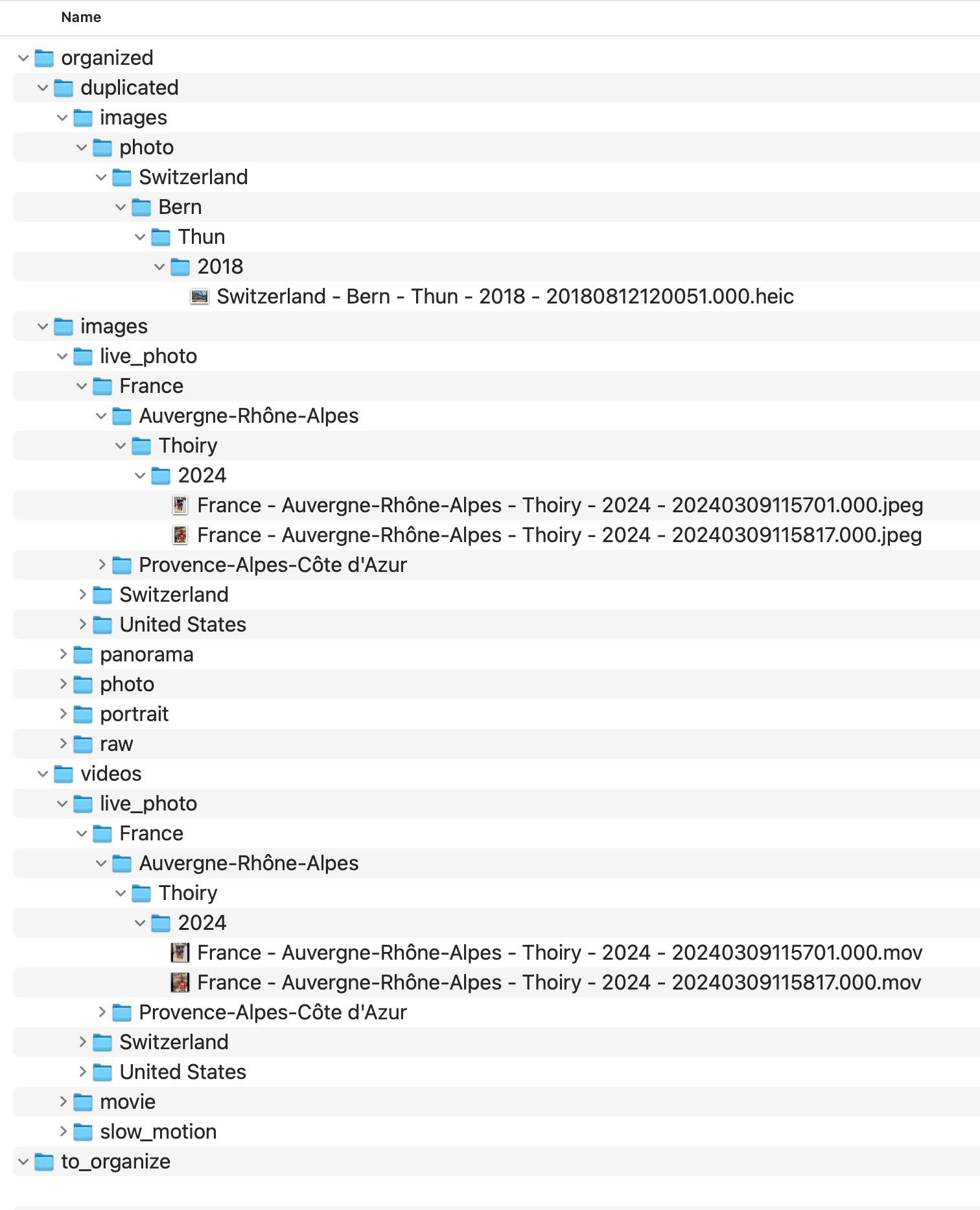
In a file-level media normalization workflow, each file is treated as a canonical unit. Instead of preserving whatever historical folder logic the archive accumulated, the files are reorganized according to stable metadata.
That has an important effect: duplicate candidates become visible as structural collisions.
Instead of silently overwriting, guessing, or mixing them together, a deterministic workflow isolates them explicitly.
Why isolation is better than deletion
Large archives often contain edge cases:
- different edits of the same image,
- same moment exported in different formats,
- copies with altered metadata,
- files that appear identical but should still be reviewed manually.
For that reason, explicit isolation is structurally safer than immediate deletion.
A good archive workflow should make duplicate candidates reviewable before destructive decisions are made.
What MediaOrganizer does differently
MediaOrganizer does not treat duplicate handling as a cosmetic cleanup step. It treats it as part of archive normalization.
Files are organized into a deterministic target structure, while structural collisions are routed into a dedicated an explicit review area area for review.
This preserves transparency and makes the archive easier to audit over time.
Why this matters before any catalog or DAM
Catalog systems like Lightroom or Apple Photos can index what they receive. But if the underlying archive already contains structural overlap, the catalog inherits that complexity.
Once duplicates are isolated and the archive is normalized at the file layer, the catalog no longer needs to compensate for historical drift across imports, backups and folder logic.
It simply indexes an already coherent archive.
FAQ
Why do I have duplicates even if I was careful?
Because duplicates often accumulate indirectly over time through backups, exports, migrations and repeated imports. They are usually a structural side effect, not a user mistake in one single moment.
Are duplicate filenames the same as duplicate photos?
No. Files can share names without being the same media, and the same media event can exist under different names. Filename alone is not a reliable long-term identity.
Should duplicate candidates always be deleted?
Not immediately. In large archives it is safer to isolate duplicate candidates first, then review them explicitly before destructive cleanup.
Why do duplicates get worse over time?
Because archives accumulate across years of devices, workflows and storage migrations. Every new import path can add overlap if the file layer is not normalized.
Where media normalization fits
The file-level problem described in this guide is one part of a broader media normalization workflow: establishing deterministic structure, explicit exceptions and tool-independent organization before relying on Lightroom, Apple Photos or any DAM system.
Related guides
- Remove Duplicate Photos on Mac
- Merge Photo Libraries on Mac Without Creating Duplicates
- Merge Photo Folders Without Creating Duplicates
- Consolidate Photos from Multiple External Drives