How to Merge Photo Libraries on Mac Without Creating Duplicates
A deterministic workflow for consolidating Apple Photos libraries into one clean archive without silent duplicate chaos, hidden structure, or catalog-dependent outcomes.
This guide follows a file-level media normalization approach — establishing deterministic file structure before importing media into catalog or DAM systems.
Why duplicate chaos happens during library merges
Most duplicate problems do not start with one big mistake. They accumulate over time after Mac upgrades, partial migrations, Time Machine restores, iCloud Photos syncing, external drive copies, and repeated exports.
By the time you decide to merge libraries, you usually have several overlapping sources containing the same events, the same trips, and sometimes the same captures under different catalog histories.
- One library may contain originals, another edited exports.
- Some imports may have been repeated on a different Mac.
- Filenames such as
IMG_1234.JPGgive no stable identity. - The merge outcome depends on catalog history you cannot easily inspect.
That is why “just import one library into another” often produces an archive that looks merged but remains structurally fragile.
Why Apple Photos alone is not enough
Apple Photos is a catalog system. It is excellent for browsing, albums, memories, edits, and everyday use. But when multiple libraries must be consolidated safely, the underlying problem is not just catalog import — it is archive structure.
Photos libraries are package containers. Their internal organization is opaque to most users, and merge behavior is driven by catalog logic, not by a deterministic file identity you control directly.
If long-term rebuildability matters, the safer approach is to normalize the files themselves before rebuilding a new library.
The safer workflow: normalize first, catalog later
Instead of merging catalogs directly, process each source library into one deterministic Target structure. Then import that clean Target into a new Photos library if you still want a catalog on top.
Photos Library A
Photos Library B
Photos Library C
        ↓
File-level media normalization
        ↓
Deterministic Target archive
        ↓
New clean Photos library / DAM
This approach makes the archive itself explicit before any catalog system depends on it.


How duplicates are handled safely
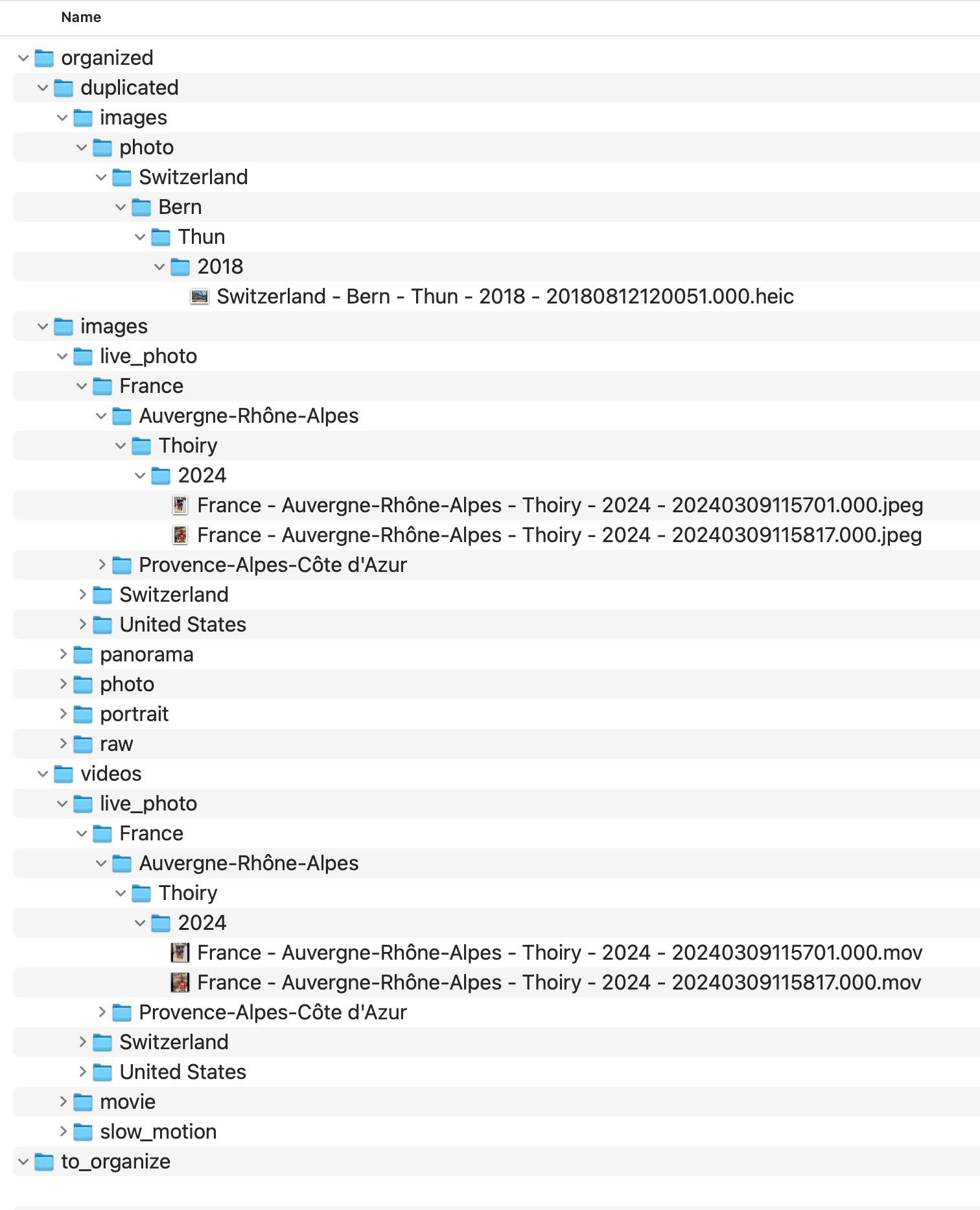
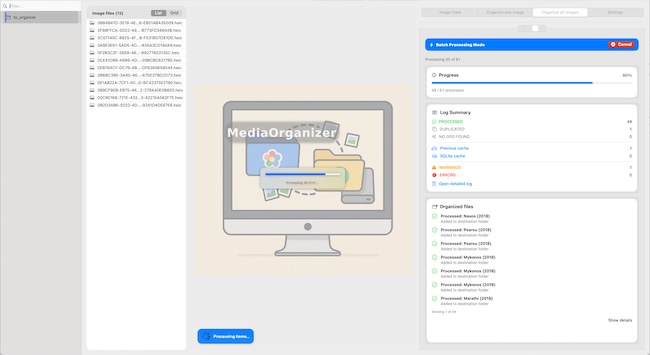
MediaOrganizer Studio does not overwrite files in the Target. If a processed item resolves to a destination that already exists, the incoming file is isolated under a duplicate review area instead of being merged silently or deleted.
- No overwrites: the canonical Target remains stable.
- No silent deletion: collisions stay visible for review.
- Mirrored context: duplicated items preserve structural context.
- Deterministic review: you can inspect collisions later without corrupting the main archive.
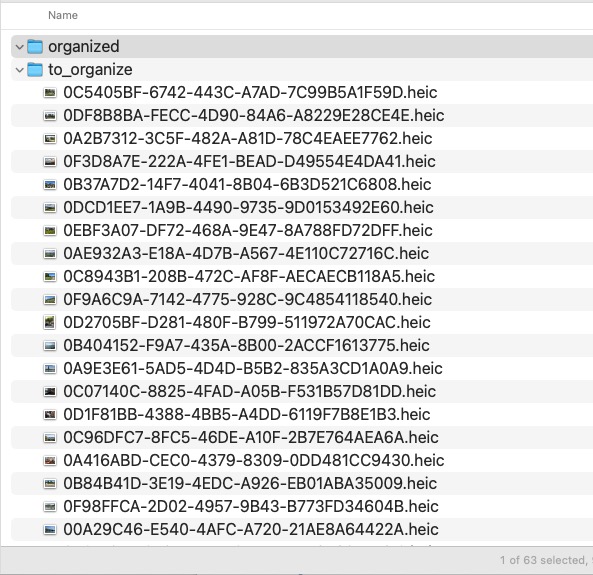
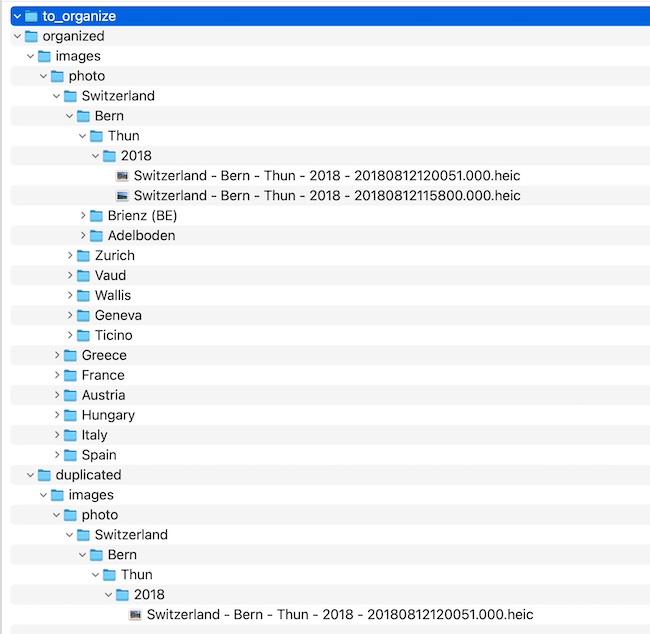
Example
The exact output layout and conflict-handling rules are handled by MediaOrganizer. This public guide describes the principle, not the implementation recipe.
The main archive stays canonical. The incoming collision is kept separately for audit instead of being flattened into ambiguity.
What defines deterministic identity
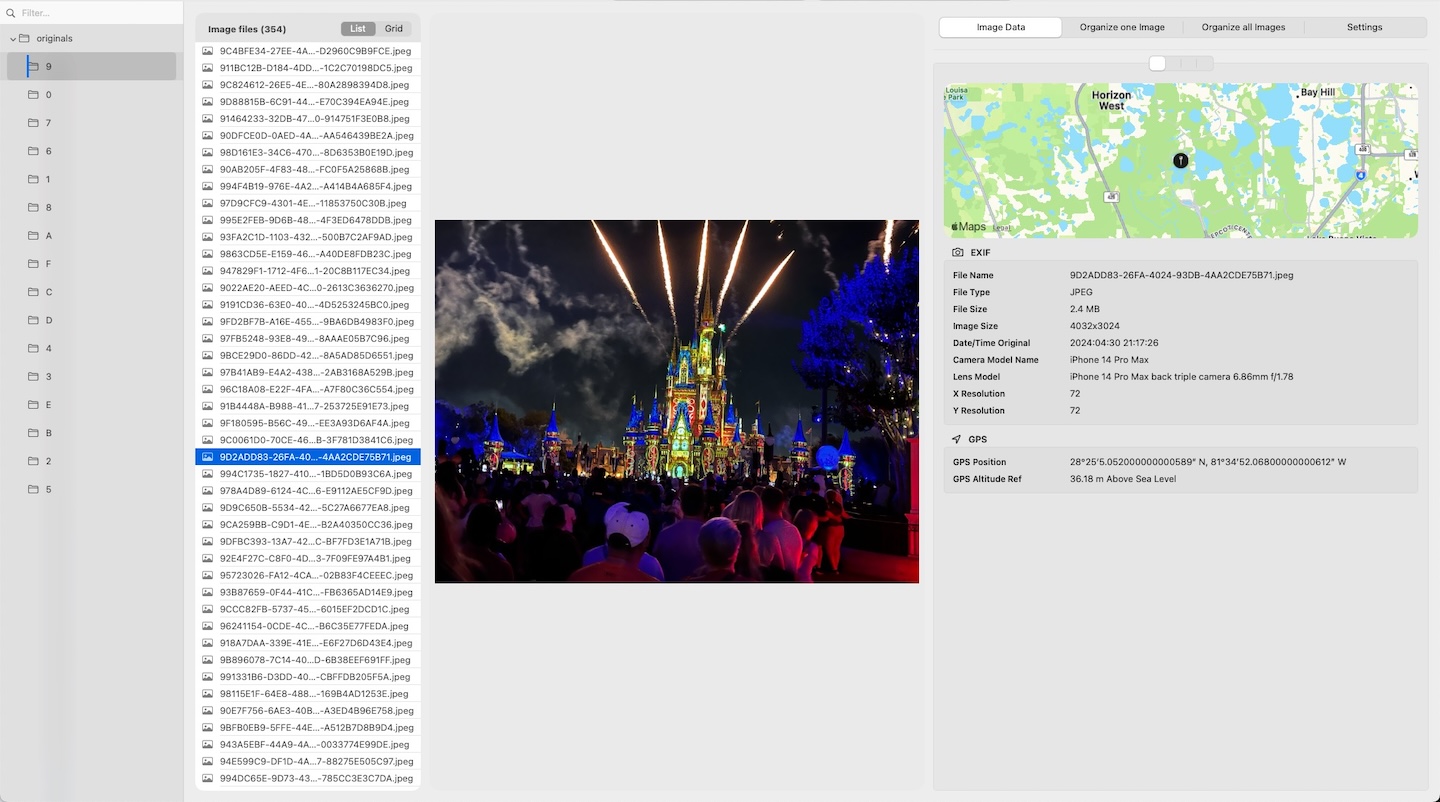
Structural identity is derived from intrinsic metadata, primarily capture timestamp and GPS information when available. This is what makes repeated runs predictable and why the same sources resolve to the same structure.
Recommended merge workflow
- Verify that each source
.photoslibraryopens correctly. - If you use iCloud Photos, ensure originals are downloaded locally before processing.
- Select one Target directory for the whole consolidation project.
- Process each Photos library separately into that same Target.
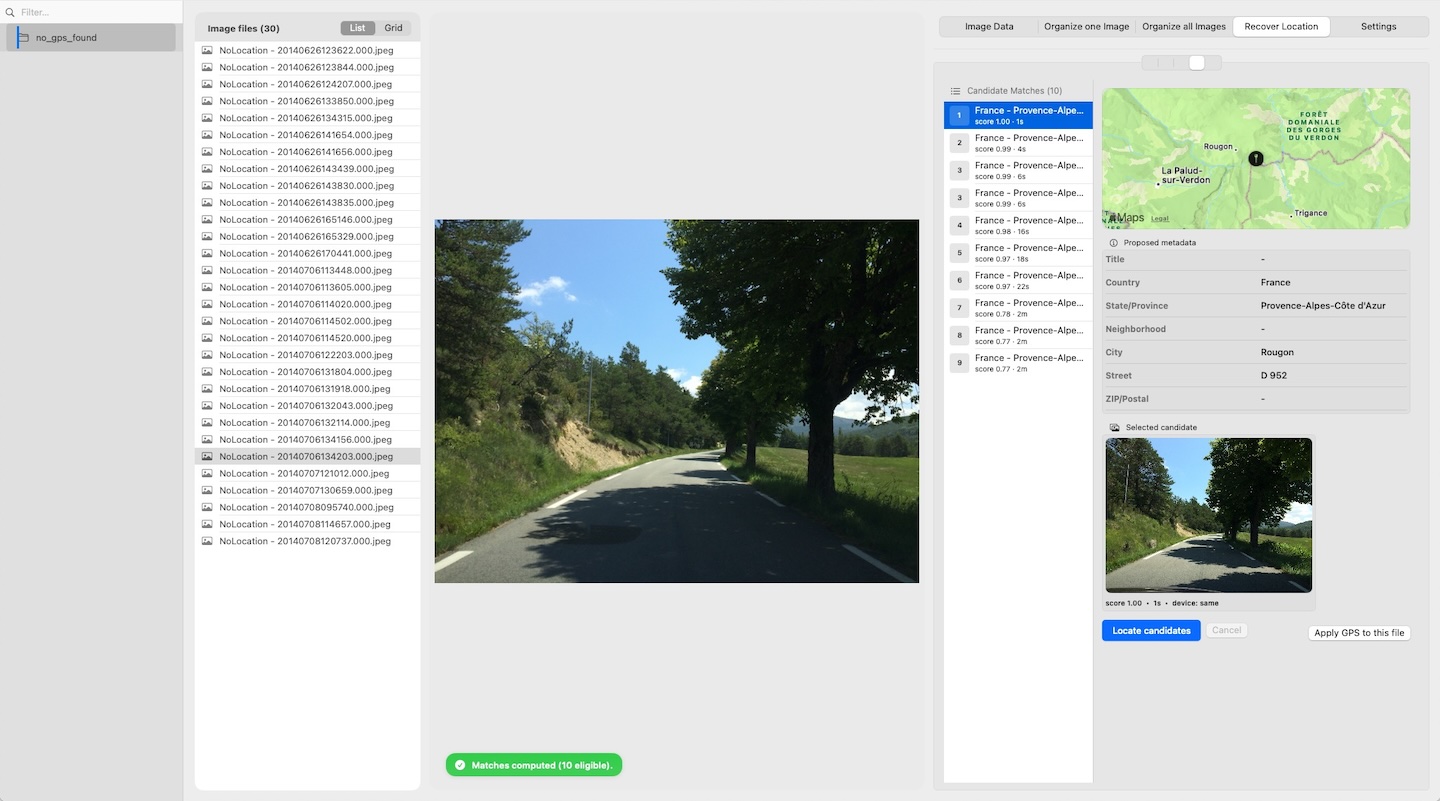
- Review a duplicate review area and an explicit review area for missing location context if needed.
- Import the resulting deterministic Target into a new clean Photos library or another DAM.
FAQ
Does this merge catalogs directly?
No. The workflow normalizes the underlying media files first. Catalog rebuilding happens afterward if you want to use Photos or another DAM.
Will duplicates be deleted automatically?
No. Naming collisions are isolated in a duplicate review area so you can review them explicitly.
Can I use the same Target for multiple libraries?
Yes. That is the point of the deterministic workflow: multiple source libraries can be consolidated into one explicit Target structure.
What if some files have no GPS?
They are handled explicitly and can later be refined using Recover Location, keeping the archive deterministic instead of leaving those files ambiguous.
Where media normalization fits
The file-level problem described in this guide is one part of a broader media normalization workflow: establishing deterministic structure, explicit exceptions and tool-independent organization before relying on Lightroom, Apple Photos or any DAM system.
Related guides
- Merge Multiple Photos Libraries on Mac
- Remove Duplicate Photos on Mac
- Organize Photos Before Lightroom Import
- Organize Photos Across Multiple Macs and Devices
- Consolidate Photos from Multiple External Drives